Generation, guest invitation, and QR-code access
In this section, you will find all the information you need to generate a QR code, use it to pass through a turnstile, and create an invitation for a guest.
- Getting a QR-Code
- Getting a QR Code in the Sechenov Mobile App
- Passing Through Turnstiles Using a QR-Code
- Getting a QR-Code for Guests
- Creating and Receiving a Guest QR Code in the Sechenov Mobile App
Getting a QR-Code
There are several ways to get a QR-code to enter the university territory.
"Home" Section
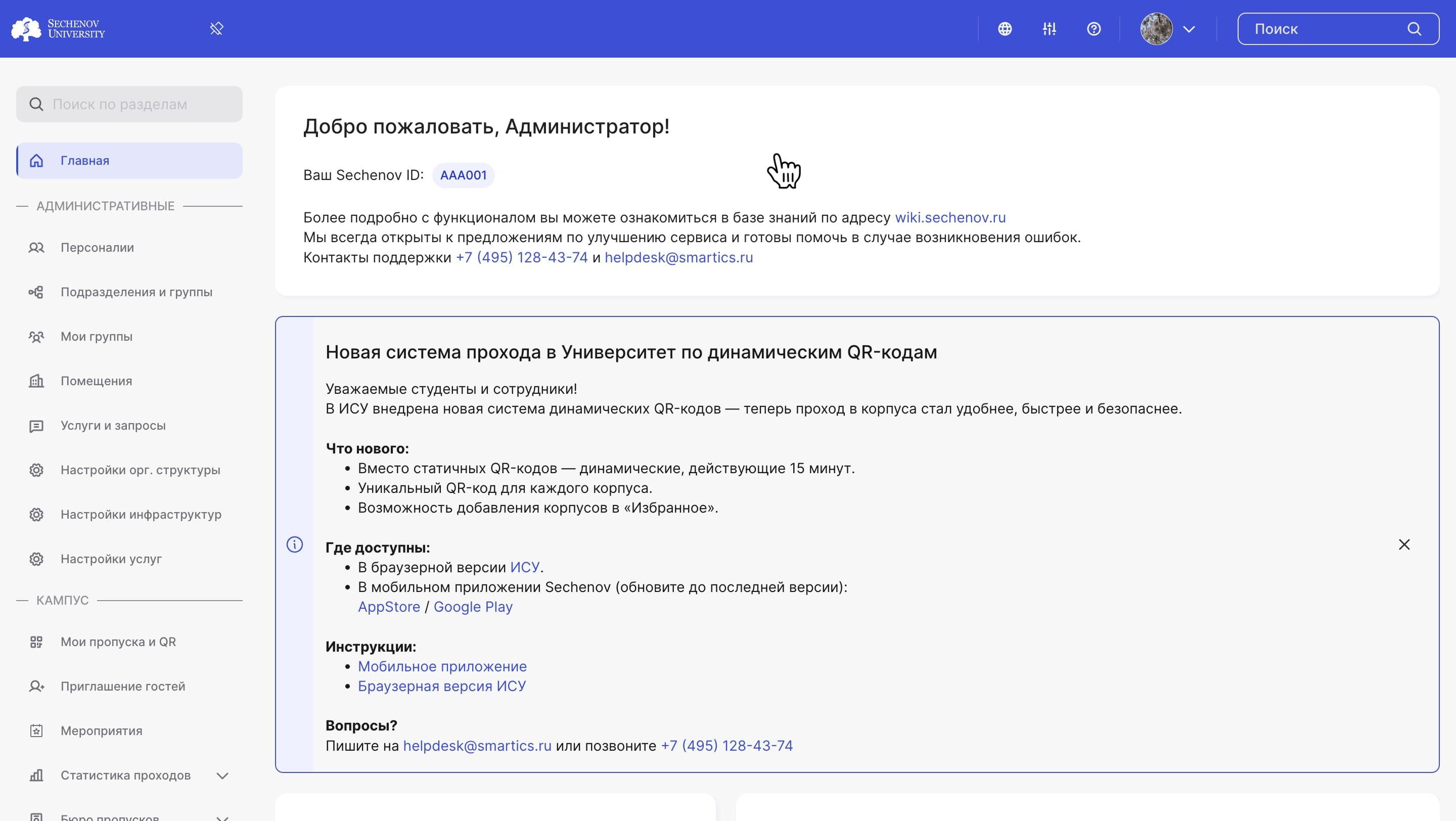
1. On the home page, you will find information about the new dynamic QR code system.
2. In the "Electronic Pass" block, you can see all the addresses you are allowed to access, along with the corresponding QR codes. Please note that a unique QR code is generated for each address.
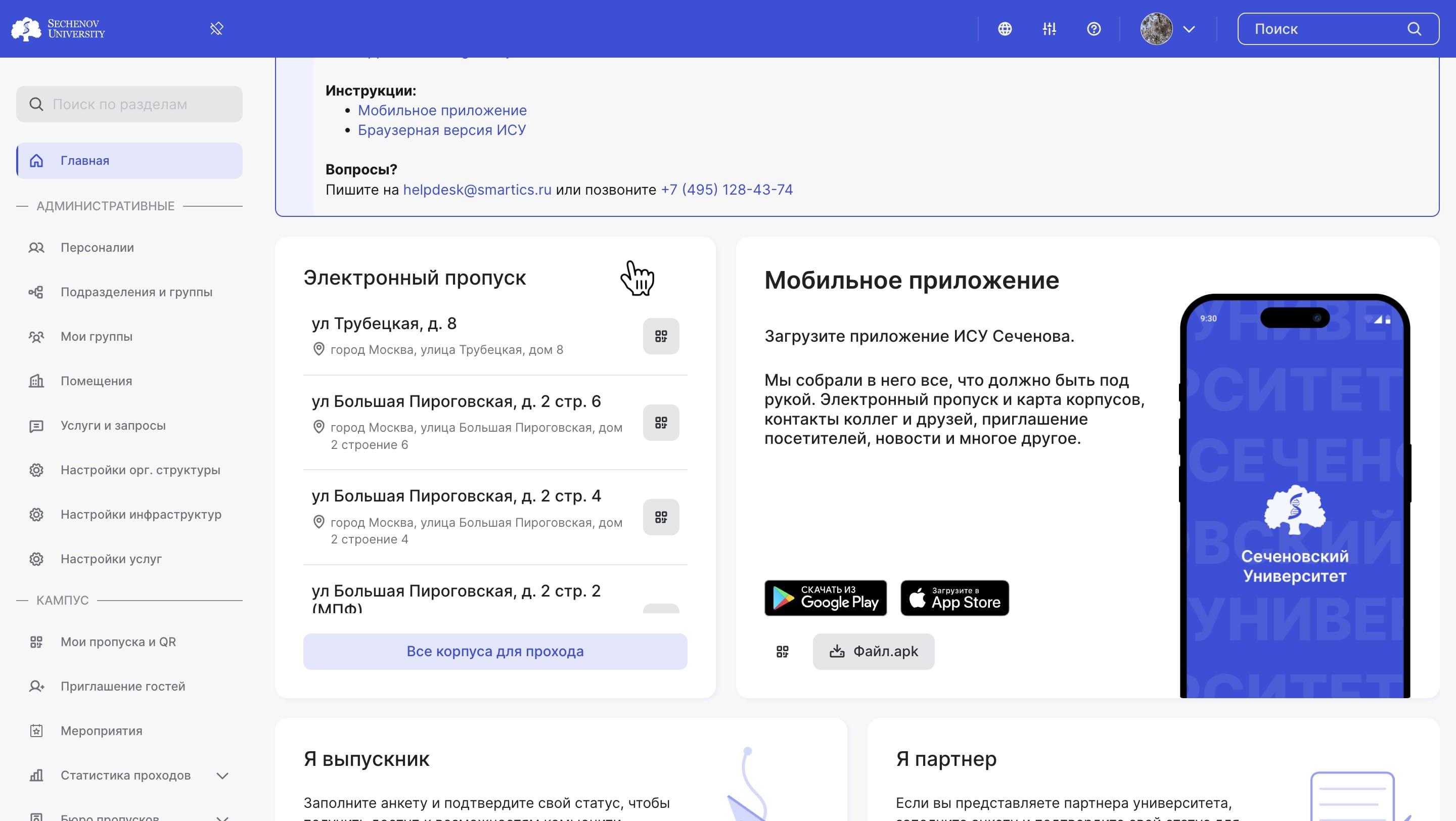
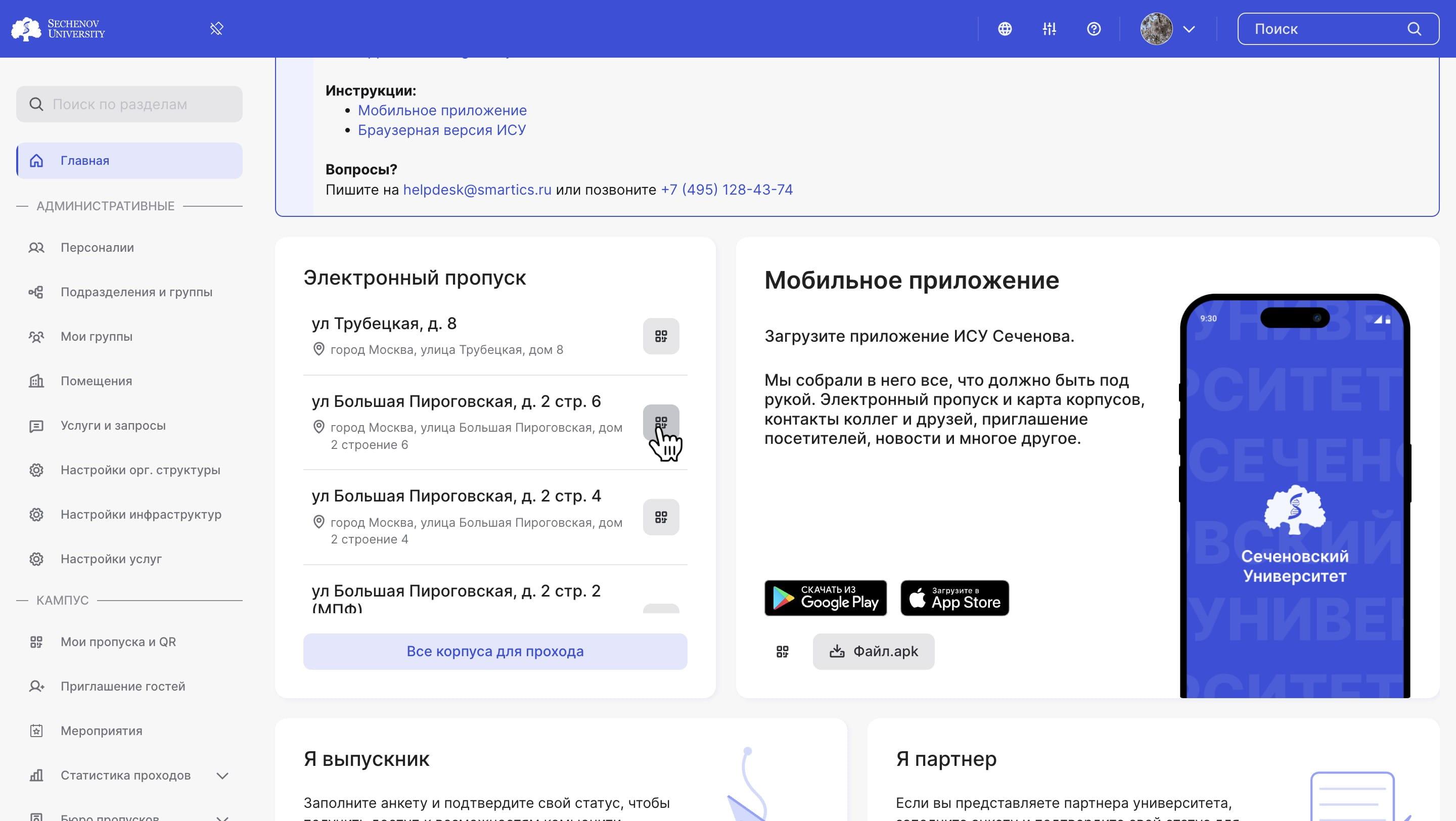
3. Select the desired address and click the "QR Code" button.
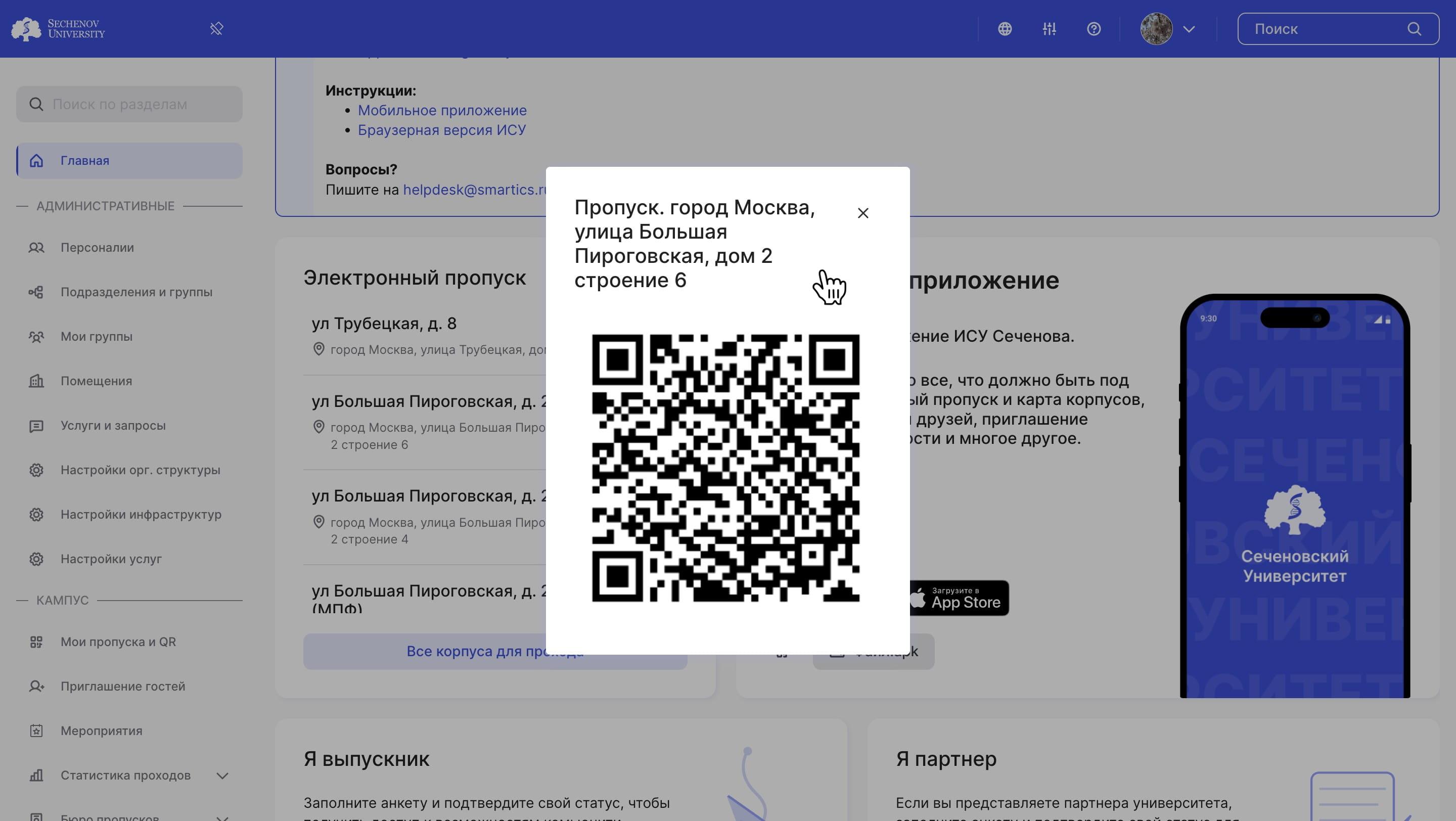
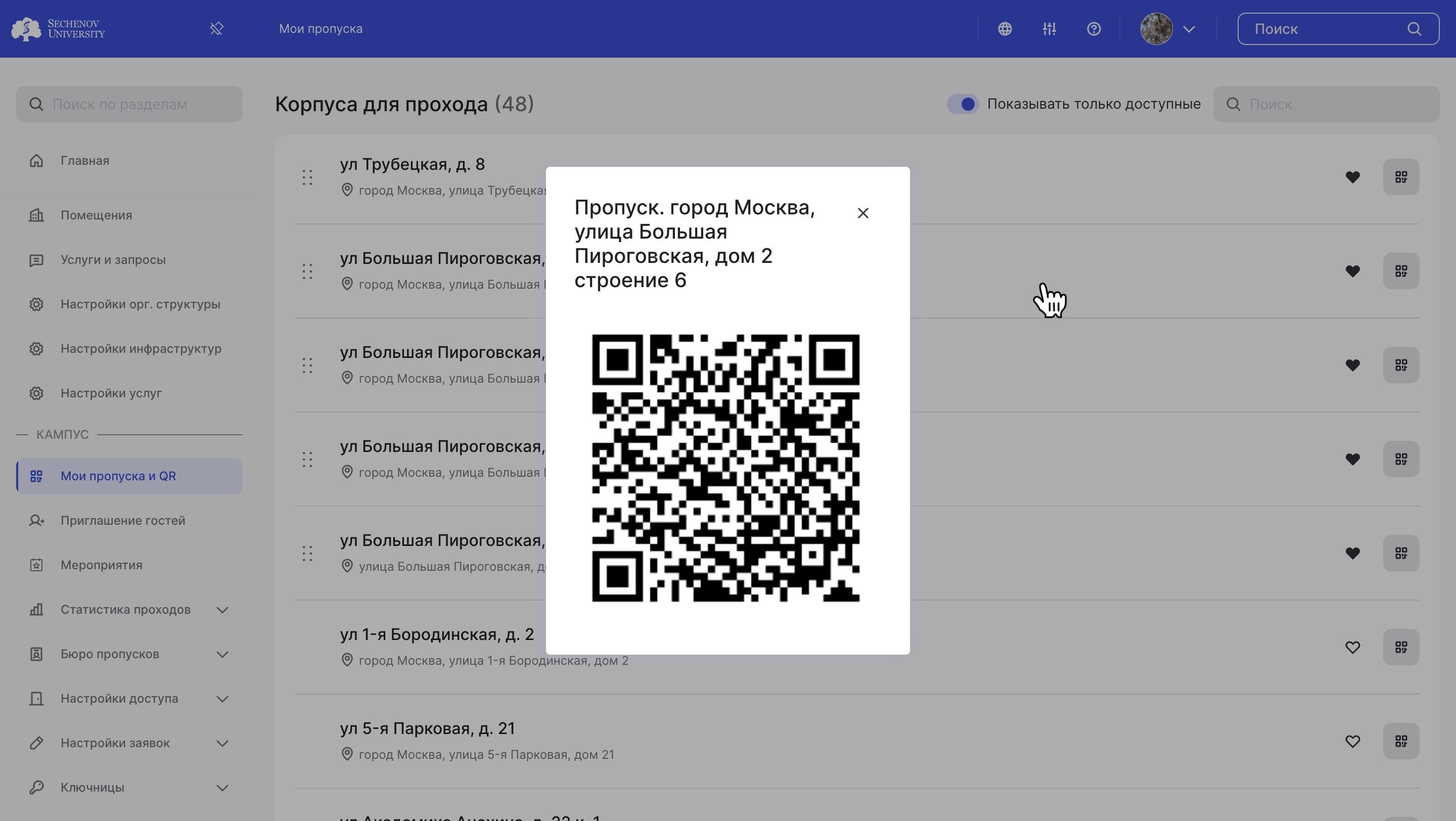
4. The system will generate a QR code that grants access to the selected location.
"My Passes and QR Codes" Section
1. You can also find your access QR codes in the "My Passes and QR Codes" section.
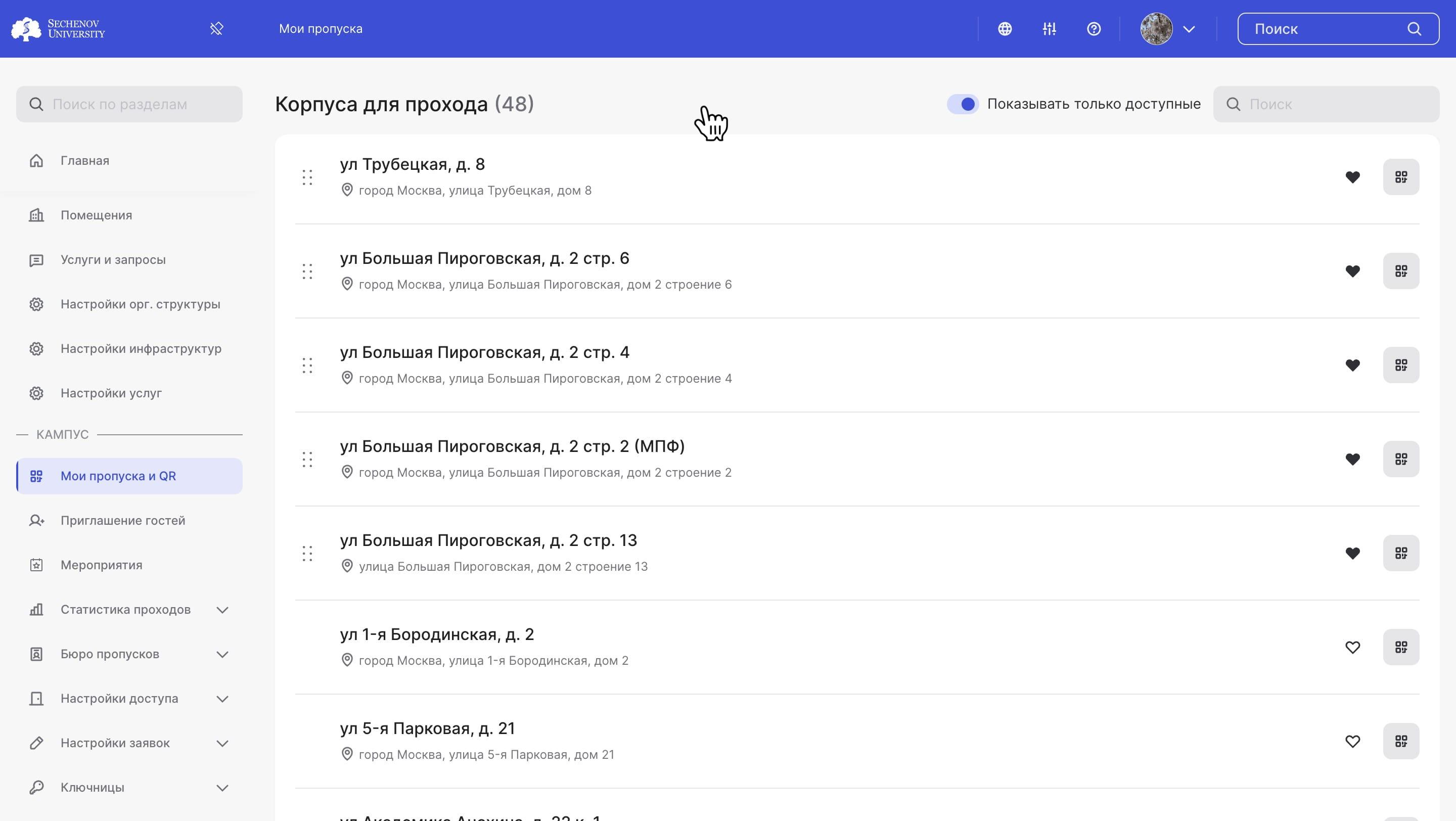
2. Select the desired address and click the "QR Code" button.
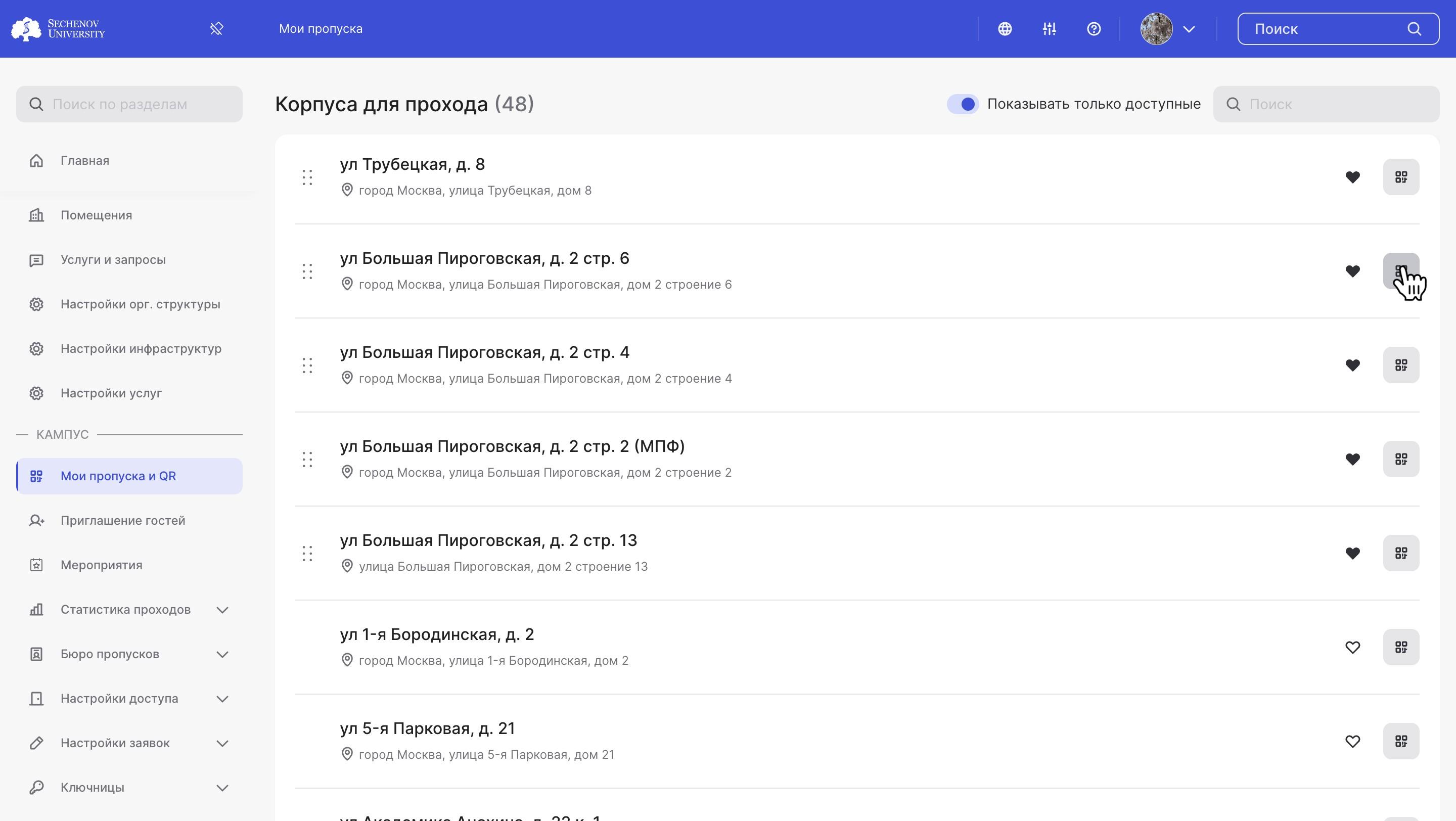
3. The system will generate a QR code for entry to the selected address.
Video Tutorial
Getting a QR Code in the Sechenov Mobile App
In this video, you'll learn how the new dynamic QR code system works for accessing the University through the Sechenov mobile app.
NOTE: Sorry, this video is available in Russian only :(
Passing Through Turnstiles Using a QR-Code
To pass through the turnstiles using a generated QR-code, simply hold your phone near the scanner.
- Open the generated QR-code;
- Increase your screen brightness;
- Hold your phone close to the scanner (10–15 cm distance).
Video Tutorial
You can also watch a video tutorial that demonstrates how to use a QR-code to pass through the turnstiles.
Getting a QR-Code for Guests
Creating an Invitation
1. Open the "Guest Invitations" tab in the "My Campus" section.

2. In the form that appears, fill in the required fields. The mandatory fields include: First and last name, guest’s valid phone number, date of visit, location of visit.
3. Once all fields are completed, click "Invite" to generate the invitation. It will then appear in the "History" section.

Receiving a Guest Pass
The guest QR code (guest pass) can be obtained via a self-service terminal. The guest needs to:
- Press the "GET PASS" button;
- Enter their phone number (this must match the number the invitation was sent to);
-
Call the phone number displayed on the terminal screen. This can be done either by:
-
Scanning the QR code shown on the terminal screen, or
-
Manually dialing the number displayed;
-
-
Take the printed QR-code;
-
Hold it close to the scanner (10–15 cm distance).
Video Tutorial
NOTE: Sorry, this video is available in Russian only :(
You can also watch video instructions that explain how to create and receive a guest pass:
-
How to Create an Invitation
- How to Receive and Use a Guest Pass
Creating and Receiving a Guest QR Code in the Sechenov Mobile App
Creating an Invitation
1. Log in to the Sechenov mobile app.
2. Tap on the "Passes and Invitations" section.
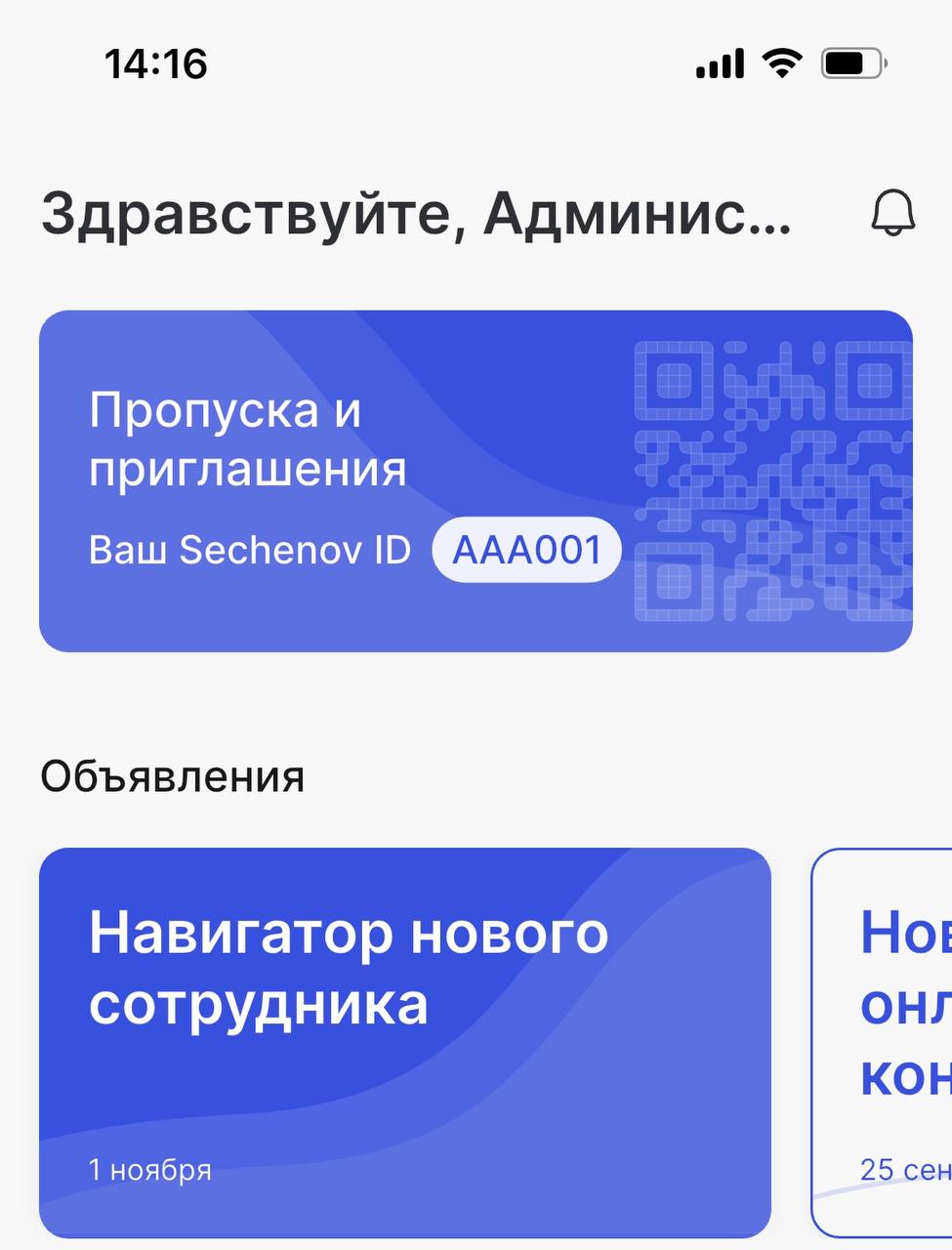
3. Go to the "Invitations" tab and tap "Invite a Visitor."
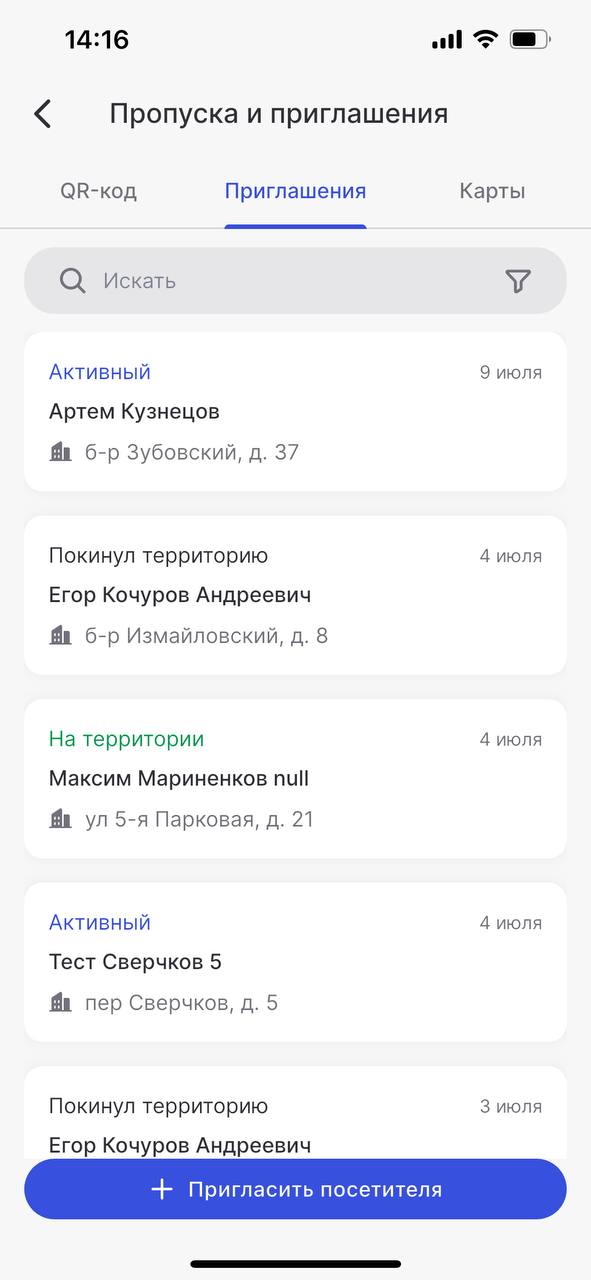
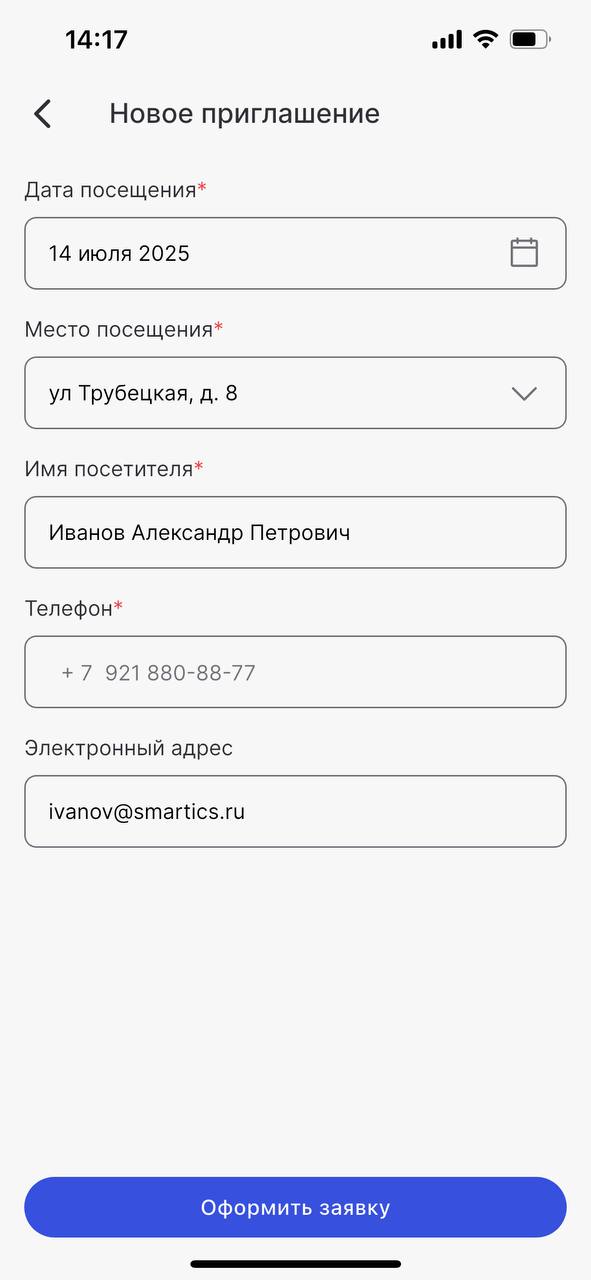
4. Fill in the required fields in the form that appears. Required fields include: Date and location of the visit, full name of the guest, guest’s phone number. You can also provide their email address.
Please make sure the guest’s phone number is valid.
Otherwise, they will not be able to receive the QR code for entry.
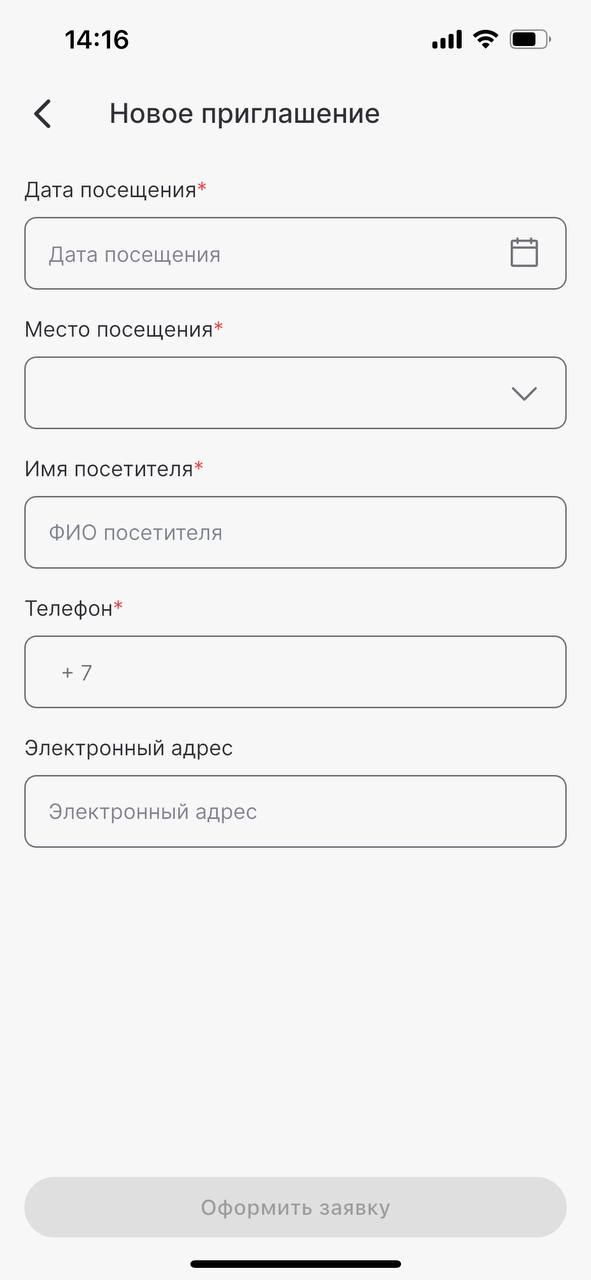
5. Once all fields are completed, tap "Submit Request.
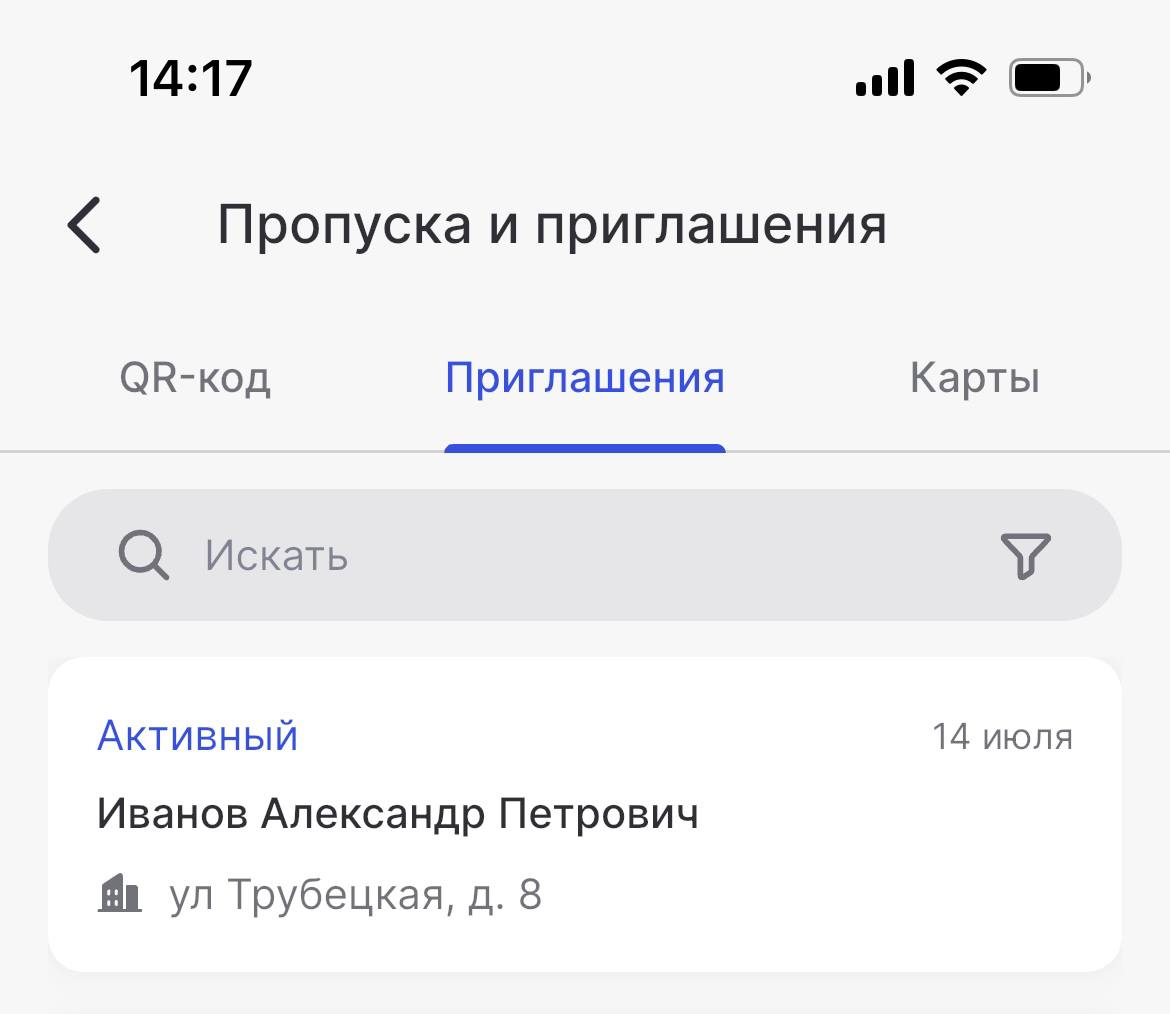
6. The created invitation will appear in the "Invitations" tab with the status "Active."
Receiving the Guest Pass
The guest QR code (guest pass) can be obtained at a terminal. To receive it, the guest must:
-
Tap the "GET PASS" button on the terminal screen;
-
Enter the phone number used in the invitation;
-
Call the phone number shown on the terminal screen. This can be done by:
-
Scanning the QR code displayed on the screen, or
-
Manually dialing the number shown;
-
-
Take the printed QR code;
-
Hold it close to the scanner at a distance of 10–15 cm.
Video Tutorial
NOTE: Sorry, this video is available in Russian only :(
You can watch a detailed video tutorial that shows how to get a guest QR code and use it for entry.
To open the video, click here.