# Generation, guest invitation, and QR-code access

# Getting a QR-Code

There are several ways to get a QR-code to enter the university territory.

#### **"Home" Section**

1\. On the home page, you will find **information about the new dynamic QR code system.**

<div id="bkmrk-"><div>![](https://assets.guidejar.com/uploads/831d1131-3ebb-44bd-8b11-be2e614bc614/s4g92dXSnmhRgriBHqJpLBNadHI2/35b5efa6-b0d6-4fe0-8251-6d7c49d548fd/annotated/1751290452045.jpeg)</div><div>  
</div></div>2\. In the **"Electronic Pass"** block, you can see all the addresses you are allowed to access, along with the corresponding QR codes. Please note that a **unique QR code is generated for each address.**

<div id="bkmrk--1"><div>![](https://assets.guidejar.com/uploads/831d1131-3ebb-44bd-8b11-be2e614bc614/s4g92dXSnmhRgriBHqJpLBNadHI2/37d91075-1958-49cb-b98e-0ceab7d33db6/annotated/1751290452096.jpeg)</div>  
<div>  
</div></div>3\. Select the desired address and click the **"QR Code" button.**

<div id="bkmrk--2"><div>![](https://assets.guidejar.com/uploads/831d1131-3ebb-44bd-8b11-be2e614bc614/s4g92dXSnmhRgriBHqJpLBNadHI2/fe056438-db2d-471a-8112-623e939c4f73/annotated/1751290452019.jpeg)</div>  
<div>  
</div></div>4\. The system will generate a QR code that grants access to **the selected location.**

<div id="bkmrk-%D0%A0%D0%B0%D0%B7%D0%B4%D0%B5%D0%BB-%C2%AB%D0%9C%D0%BE%D0%B8-%D0%BF%D1%80%D0%BE%D0%BF%D1%83%D1%81%D0%BA%D0%B0"><div>![](https://assets.guidejar.com/uploads/831d1131-3ebb-44bd-8b11-be2e614bc614/s4g92dXSnmhRgriBHqJpLBNadHI2/24792b03-0fff-44e5-80be-581fc9372b7b/annotated/1751290452149.jpeg)</div>  
</div>#### **"My Passes and QR Codes" Section**

1\. You can also find your access QR codes in the **"My Passes and QR Codes"** section.

<div id="bkmrk--3"><div>![](https://assets.guidejar.com/uploads/831d1131-3ebb-44bd-8b11-be2e614bc614/s4g92dXSnmhRgriBHqJpLBNadHI2/ff87ffd1-e85c-415c-a44b-a89c7e1741a4/annotated/1751290452070.jpeg)</div>  
<div>  
</div></div>2\. Select the desired address and click the **"QR Code" button.**

<div id="bkmrk--4"><div>![](https://assets.guidejar.com/uploads/831d1131-3ebb-44bd-8b11-be2e614bc614/s4g92dXSnmhRgriBHqJpLBNadHI2/237baa6a-b7c2-4c4e-8cba-e1d07d6736f8/annotated/1751290451978.jpeg)</div>  
<div>  
</div></div>3\. The system will generate a QR code for entry to **the selected address.**

<div id="bkmrk--5"><div>![](https://assets.guidejar.com/uploads/831d1131-3ebb-44bd-8b11-be2e614bc614/s4g92dXSnmhRgriBHqJpLBNadHI2/2640df95-0c32-41b5-bc81-ebacf1d8368d/annotated/1751290452122.jpeg)</div></div><div id="bkmrk--6"></div>#### **Video Tutorial**

<div id="bkmrk--7"></div><div id="bkmrk--8"><video controls="controls" height="420" style="width: 840px; height: 420px;" width="840"> <source src="https://s3.isu.sechenov.ru/instructions/%D0%94%D0%B8%D0%BD%D0%B0%D0%BC%D0%B8%D1%87%D0%B5%D1%81%D0%BA%D0%B8%D0%B5%20QR.%20%D0%98%D0%A1%D0%A3.mov"></source></video></div>

# Getting a QR Code in the Sechenov Mobile App

In this video, you'll learn how the new dynamic QR code system works for accessing the University through the Sechenov mobile app.

<p class="callout info">**NOTE: Sorry, this video is available in Russian only :(**</p>

<video controls="controls" height="413" style="width: 828px; height: 413px;" width="828"> <source src="https://s3.isu.sechenov.ru/instructions/%D0%94%D0%B8%D0%BD%D0%B0%D0%BC%D0%B8%D1%87%D0%B5%D1%81%D0%BA%D0%B8%D0%B5%20QR-%D0%BA%D0%BE%D0%B4%D1%8B.mov"></source></video>

# Passing Through Turnstiles Using a QR-Code

To pass through the turnstiles using a generated QR-code, simply **hold your phone near the scanner.**

- Open the generated QR-code;
- Increase your screen brightness;
- Hold your phone close to the scanner (10–15 cm distance).

#### Video Tutorial

You can also watch a video tutorial that demonstrates how to use a QR-code to pass through the turnstiles.

<video controls="controls" height="430" style="width: 835px; height: 430px;" width="835"> <source src="https://s3.isu.sechenov.ru/instructions/%D0%9F%D1%80%D0%BE%D1%85%D0%BE%D0%B4%20%D0%BF%D0%BE%20QR-%D0%BA%D0%BE%D0%B4%D1%83%20(%D0%BD%D0%BE%D0%B2%D0%BE%D0%B5)%202.mov"></source></video>

# Getting a QR-Code for Guests

<article class="text-token-text-primary w-full focus:outline-none scroll-mt-[calc(var(--header-height)+min(200px,max(70px,20svh)))]" data-scroll-anchor="true" data-testid="conversation-turn-24" data-turn="assistant" dir="auto" id="bkmrk-creating-an-invitati" tabindex="-1"><div class="text-base my-auto mx-auto pb-10 [--thread-content-margin:--spacing(4)] @[37rem]:[--thread-content-margin:--spacing(6)] @[72rem]:[--thread-content-margin:--spacing(16)] px-(--thread-content-margin)"></div></article>### Creating an Invitation

1\. Open the **"Guest Invitations"** tab in the **"My Campus"** section.

[![Снимок экрана 2025-02-21 в 13.17.40.png](https://s3.isu.sechenov.ru/bookstack/uploads/images/gallery/2025-02/scaled-1680-/snimok-ekrana-2025-02-21-v-13-17-40.png)](https://s3.isu.sechenov.ru/bookstack/uploads/images/gallery/2025-02/snimok-ekrana-2025-02-21-v-13-17-40.png)

2\. In the form that appears, fill in the required fields. The **mandatory fields include:** First and last name, guest’s **valid** phone number, date of visit, location of visit.[![Снимок экрана 2025-02-21 в 13.18.18.png](https://s3.isu.sechenov.ru/bookstack/uploads/images/gallery/2025-02/scaled-1680-/snimok-ekrana-2025-02-21-v-13-18-18.png)](https://s3.isu.sechenov.ru/bookstack/uploads/images/gallery/2025-02/snimok-ekrana-2025-02-21-v-13-18-18.png)


3\. Once all fields are completed, click **"Invite"** to generate the invitation. It will then appear in the **"History"** section.

**[![Снимок экрана 2025-02-21 в 13.18.30.png](https://s3.isu.sechenov.ru/bookstack/uploads/images/gallery/2025-02/scaled-1680-/snimok-ekrana-2025-02-21-v-13-18-30.png)](https://s3.isu.sechenov.ru/bookstack/uploads/images/gallery/2025-02/snimok-ekrana-2025-02-21-v-13-18-30.png)**

### Receiving a Guest Pass

**The guest QR code** (guest pass) can be obtained via a self-service terminal. The guest needs to:

1. Press the **"GET PASS"** button;
2. Enter their phone number **(this must match the number the invitation was sent to);**
3. **Call the phone number displayed on the terminal screen.** This can be done either by:
    
    
    - Scanning the QR code shown on the terminal screen, or
    - Manually dialing the number displayed;
4. Take the printed QR-code;
5. Hold it close to the scanner (10–15 cm distance).

### Video Tutorial

<p class="callout info">**NOTE: Sorry, this video is available in Russian only :(**</p>

You can also watch video instructions that explain **how to create and receive a guest pass:**

- **How to Create an Invitation**

<video controls="controls" height="413" style="width: 828px; height: 413px;" width="828"> <source src="https://s3.isu.sechenov.ru/instructions/%D0%9F%D0%BE%D0%BB%D1%83%D1%87%D0%B5%D0%BD%D0%B8%D0%B5%20QR-%D0%BA%D0%BE%D0%B4%D0%B0%20%D0%B4%D0%BB%D1%8F%20%D0%B3%D0%BE%D1%81%D1%82%D0%B5%D0%B8%CC%86.mov"></source></video>

- **How to Receive and Use a Guest Pass**

<video controls="controls" height="417" style="width: 834px; height: 417px;" width="834"> <source src="https://s3.isu.sechenov.ru/instructions/%D0%9F%D0%BE%D0%BB%D1%83%D1%87%D0%B5%D0%BD%D0%B8%D0%B5%20%D0%B3%D0%BE%D1%81%D1%82%D0%B5%D0%B2%D0%BE%D0%B3%D0%BE%20%D0%BF%D1%80%D0%BE%D0%BF%D1%83%D1%81%D0%BA%D0%B0%20(%D0%BD%D0%BE%D0%B2%D0%BE%D0%B5)%202.mov"></source></video>

# Creating and Receiving a Guest QR Code in the Sechenov Mobile App

### Creating an Invitation

1\. Log in to the **Sechenov mobile app.**

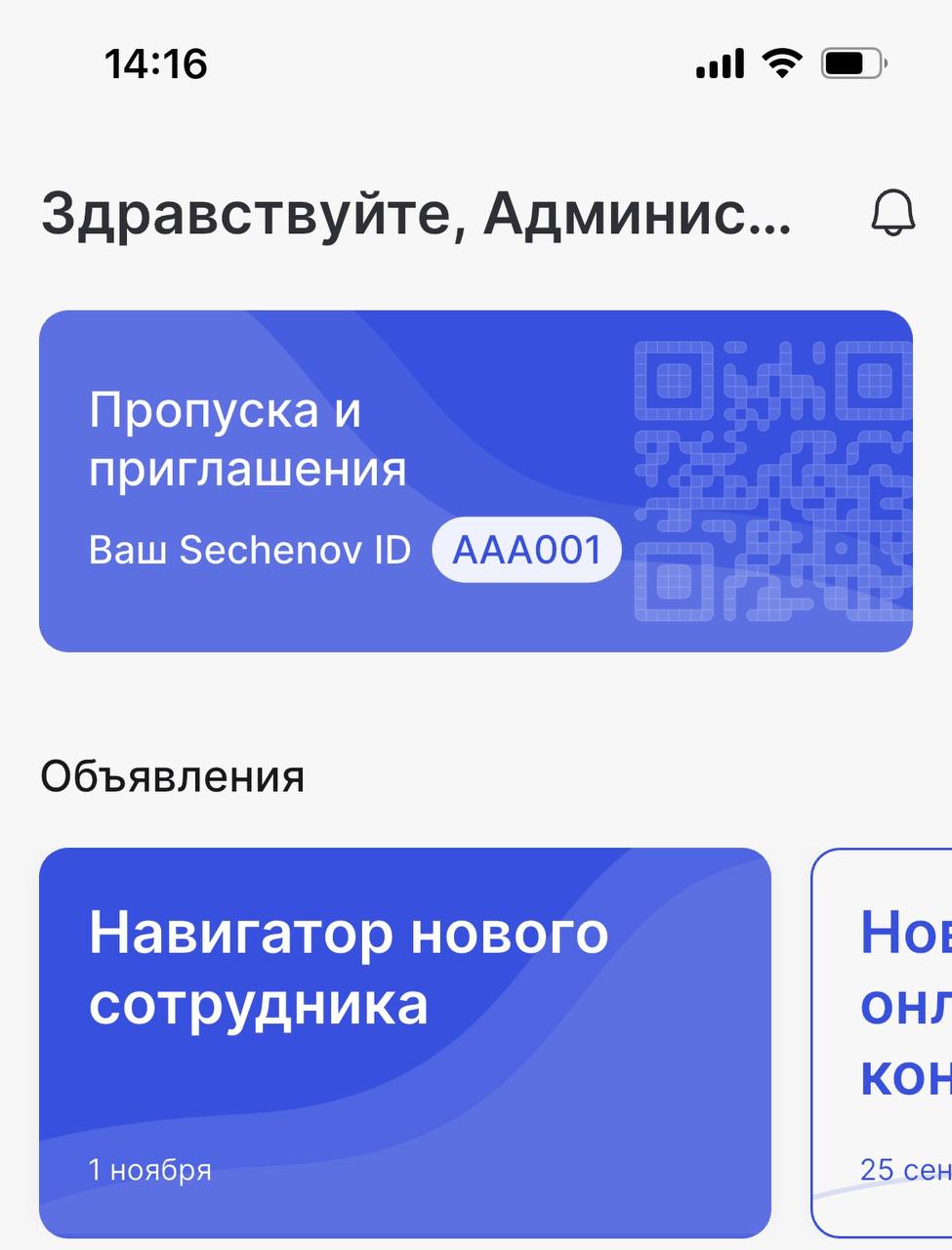
2\. Tap on the **"Passes and Invitations"** section.

[![2025-07-14 14.47.52.jpg](https://s3.isu.sechenov.ru/bookstack/uploads/images/gallery/2025-07/scaled-1680-/2025-07-14-14-47-52.jpg)](https://s3.isu.sechenov.ru/bookstack/uploads/images/gallery/2025-07/2025-07-14-14-47-52.jpg)
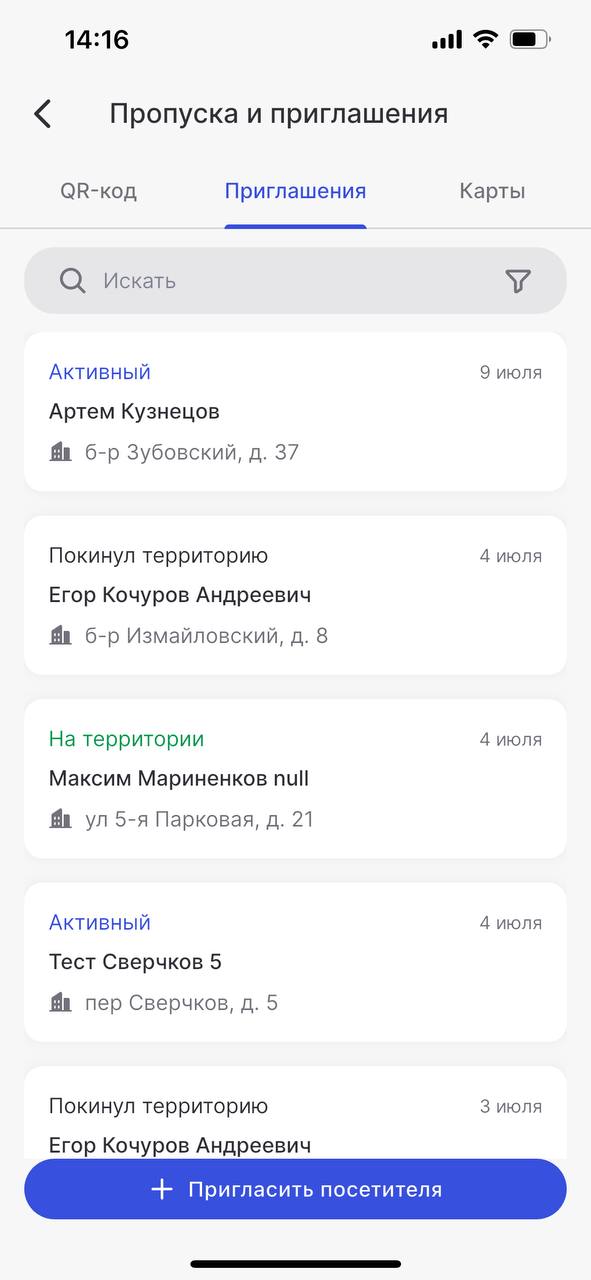
3\. Go to the **"Invitations"** tab and tap **"Invite a Visitor."**

[![2025-07-14 14.48.22.jpg](https://s3.isu.sechenov.ru/bookstack/uploads/images/gallery/2025-07/scaled-1680-/2025-07-14-14-48-22.jpg)](https://s3.isu.sechenov.ru/bookstack/uploads/images/gallery/2025-07/2025-07-14-14-48-22.jpg)
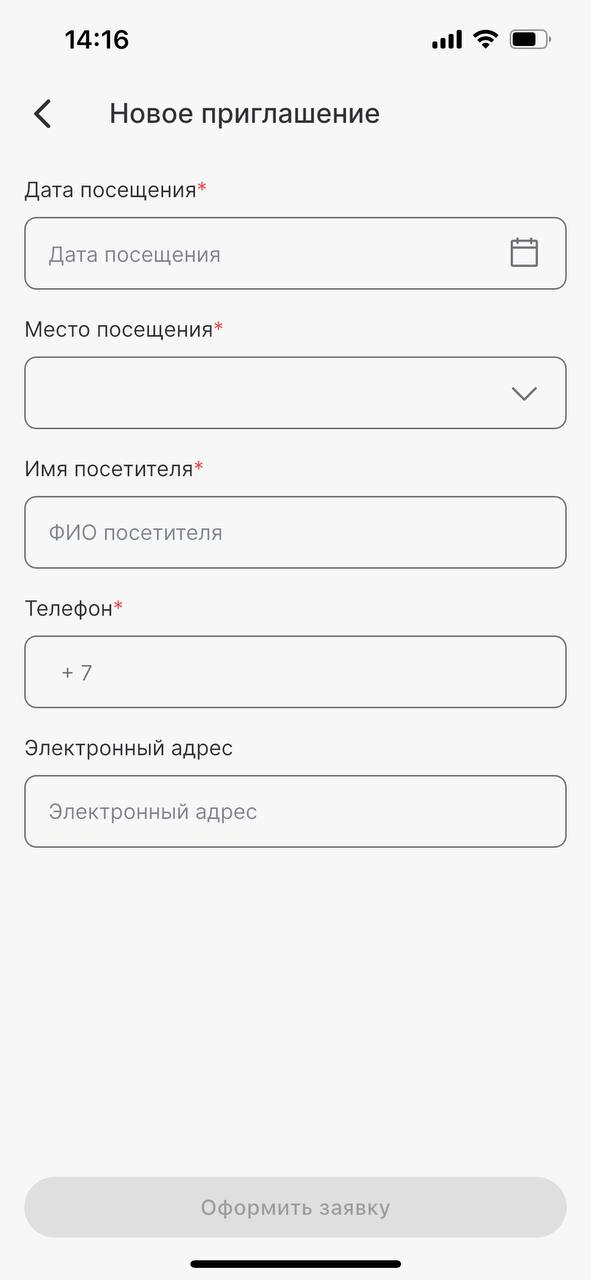
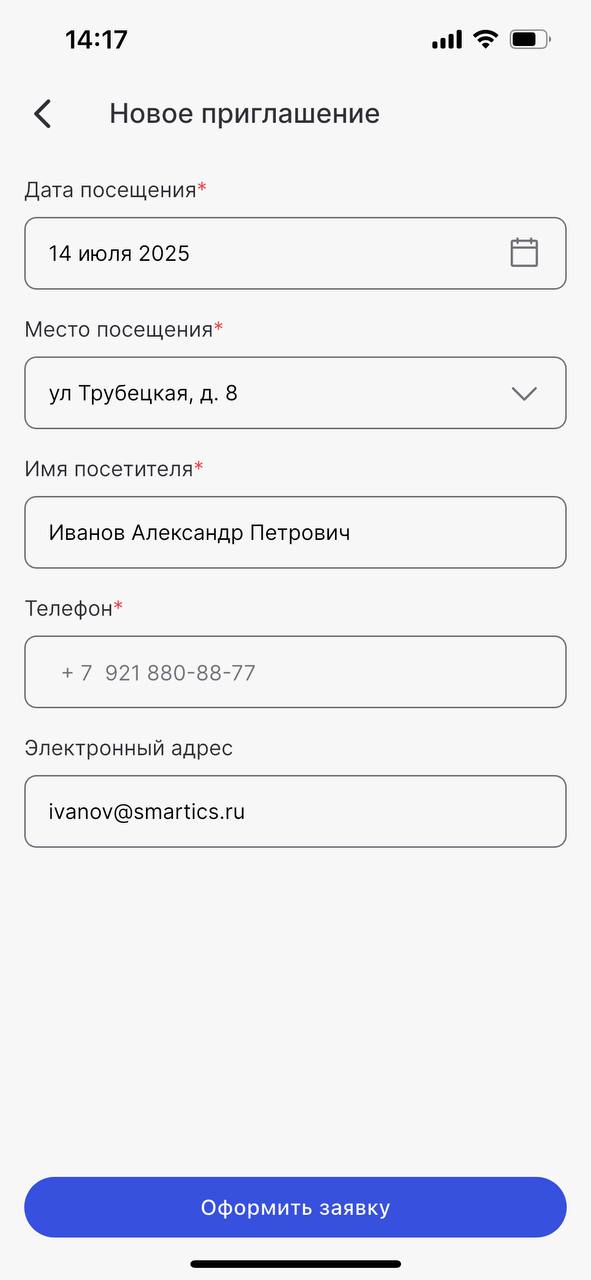
4\. Fill in the required fields in the form that appears. **Required fields include:** Date and location of the visit, full name of the guest, guest’s phone number. You can also provide their **email address.**

<p class="callout warning">**Please make sure the guest’s phone number is valid.**  
Otherwise, they will not be able to receive the QR code for entry. </p>

[![telegram-cloud-photo-size-2-5451764824364151784-y.jpg](https://s3.isu.sechenov.ru/bookstack/uploads/images/gallery/2025-07/scaled-1680-/telegram-cloud-photo-size-2-5451764824364151784-y.jpg)](https://s3.isu.sechenov.ru/bookstack/uploads/images/gallery/2025-07/telegram-cloud-photo-size-2-5451764824364151784-y.jpg)

5\. Once all fields are completed, tap **"Submit Request.**

[![2025-07-14 14.48.02.jpg](https://s3.isu.sechenov.ru/bookstack/uploads/images/gallery/2025-07/scaled-1680-/2025-07-14-14-48-02.jpg)](https://s3.isu.sechenov.ru/bookstack/uploads/images/gallery/2025-07/2025-07-14-14-48-02.jpg)
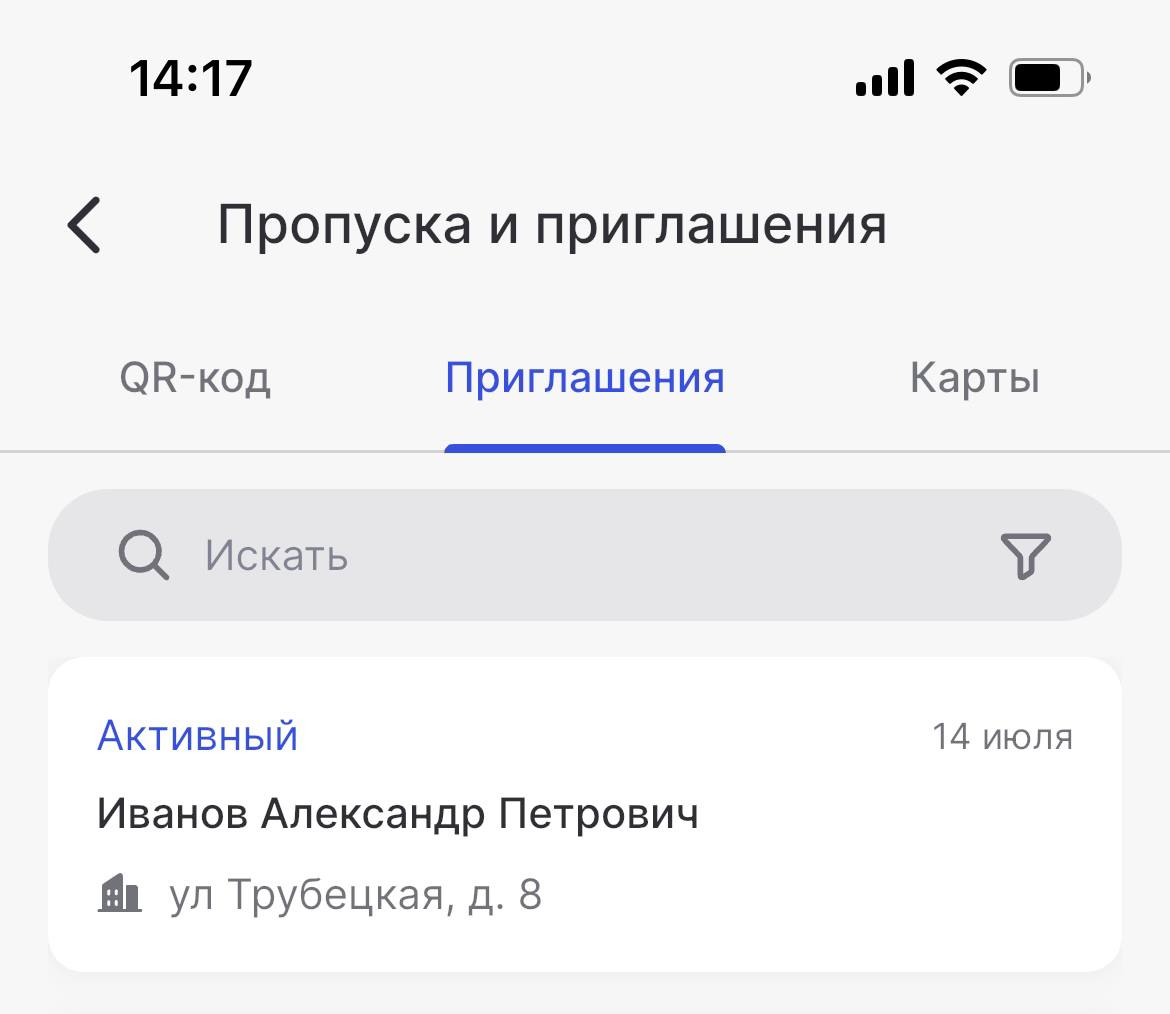
6\. The created invitation will appear in the **"Invitations"** tab with the status **"Active."**

[![2025-07-14 14.47.47.jpg](https://s3.isu.sechenov.ru/bookstack/uploads/images/gallery/2025-07/scaled-1680-/2025-07-14-14-47-47.jpg)](https://s3.isu.sechenov.ru/bookstack/uploads/images/gallery/2025-07/2025-07-14-14-47-47.jpg)
### Receiving the Guest Pass

The guest QR code (guest pass) can be obtained **at a terminal.** To receive it, the guest must:

1. Tap the **"GET PASS"** button on the terminal screen;
2. **Enter the phone number** used in the invitation;
3. **Call** the phone number shown on the terminal screen. This can be done by:
    
    
    - Scanning the QR code displayed on the screen, or
    - Manually dialing the number shown;
4. **Take** the printed QR code;
5. **Hold it close to the scanner** at a distance of 10–15 cm.

### Video Tutorial

<p class="callout info">**NOTE: Sorry, this video is available in Russian only :(**</p>

You can watch a detailed video tutorial that shows how to get a guest QR code and use it for entry.

To open the video, [**click here**.](https://s3.isu.sechenov.ru/instructions/%D0%9F%D0%BE%D0%BB%D1%83%D1%87%D0%B5%D0%BD%D0%B8%D0%B5%20%D0%B3%D0%BE%D1%81%D1%82%D0%B5%D0%B2%D0%BE%D0%B3%D0%BE%20%D0%BF%D1%80%D0%BE%D0%BF%D1%83%D1%81%D0%BA%D0%B0%20(%D0%BD%D0%BE%D0%B2%D0%BE%D0%B5)%202.mov)