# Authorization Confirmation in the ISU

To be able to **use the ISU system and access University buildings**, you need to:

- Register in the ISU;
- Confirm your authorization in your personal account settings;
- Download the mobile app so that your access QR code is always in your phone.

#### Registration in the ISU

<p class="callout warning">**IMPORTANT: The number you provide when registering must match your number listed in your staff and/or student personal account in the University's official resources. If the numbers do not match, please contact technical support at <span class="s1">helpdesk@smartics.ru</span> or call +7 (495) 128-43-74.**</p>

<p class="callout success">**NOTE: You can find instruction on how to locate your corporate email [here.](https://wiki.sechenov.ru/books/registraciia-i-avtorizaciia-v-isu/page/how-to-find-your-corporate-email-at-sechenov-university)**</p>

1\. <span class="s1">Go to </span>[https://isu.sechenov.ru](https://isu.sechenov.ru)

2\. On the home page, click the **"Register Sechenov ID"** button to start the registration process.
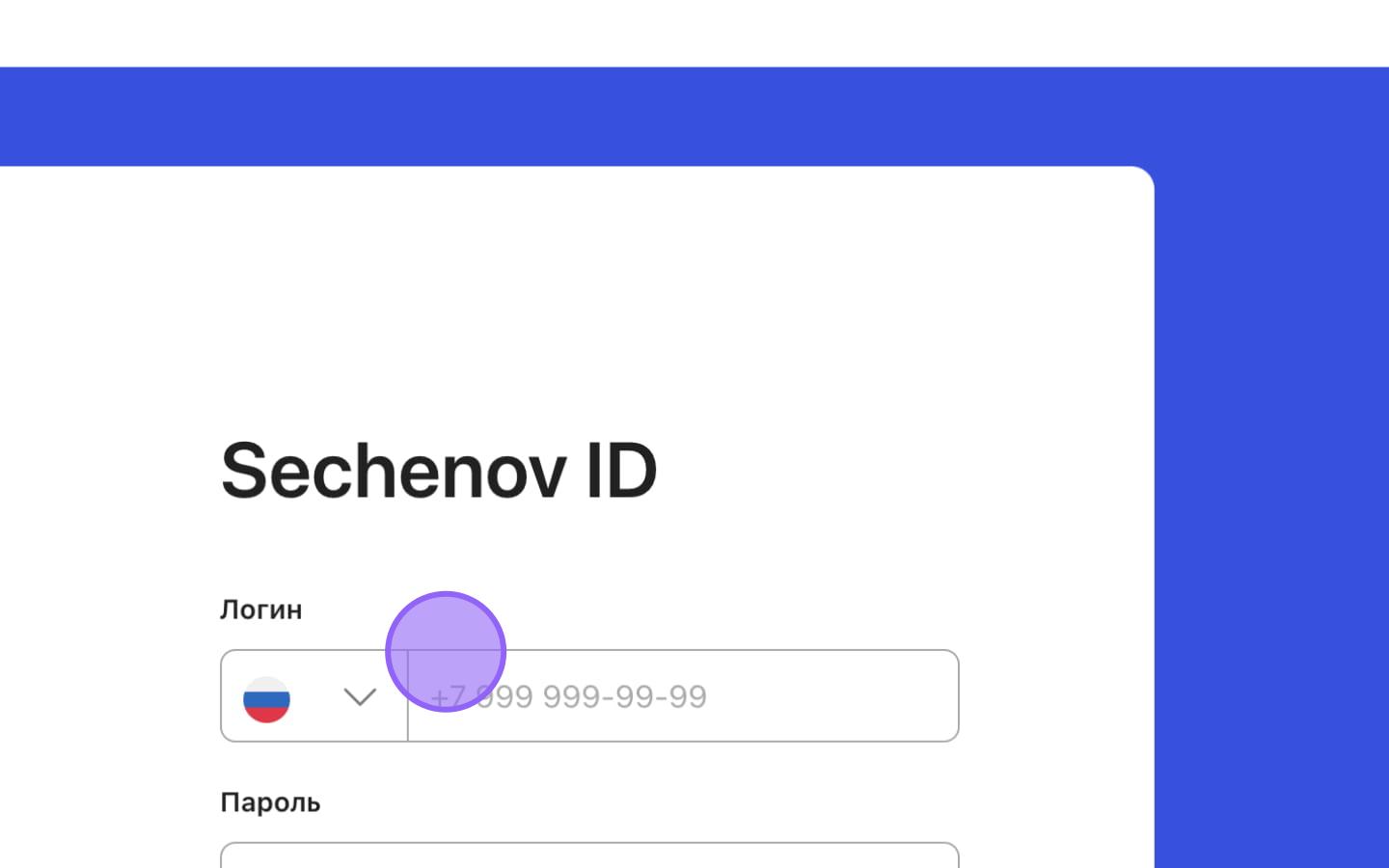
<div id="bkmrk-"><div>![](https://assets.guidejar.com/uploads/3539F815-576B-493F-933D-516BEE8DB384/s4g92dXSnmhRgriBHqJpLBNadHI2/522145ad-baa3-4e10-af38-789ac42042a8/annotated/1728900028299.jpeg)</div><div>  
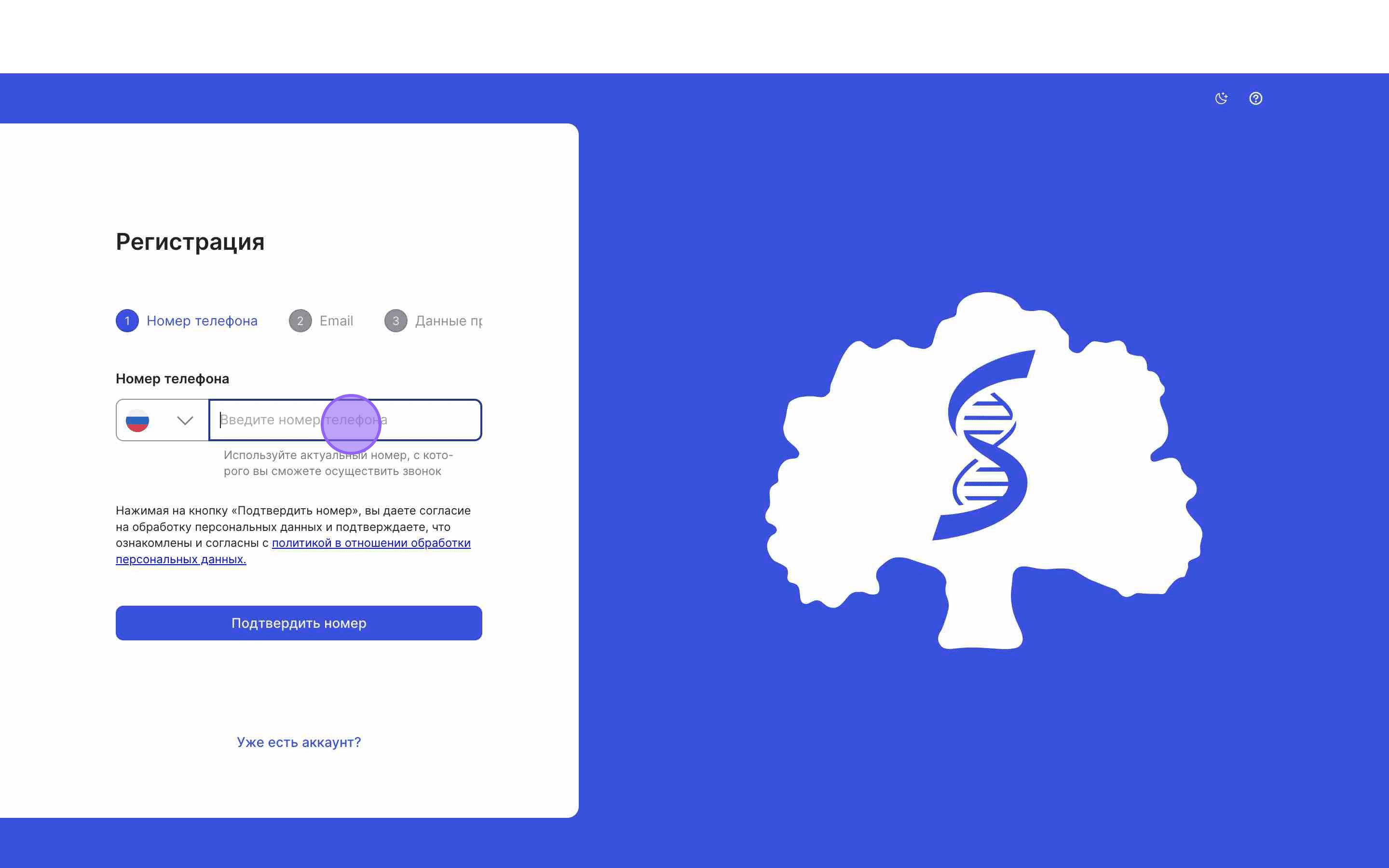
</div></div>3\. In the registration form, enter **your mobile phone number.**

<div id="bkmrk--1"><div>![](https://assets.guidejar.com/uploads/3539F815-576B-493F-933D-516BEE8DB384/s4g92dXSnmhRgriBHqJpLBNadHI2/EF6B12E2-D148-49A4-8CBE-987AB2769724/annotated/1728900027648.jpeg)</div><div>  
</div></div><p class="callout success">**NOTE: Only mobile phone numbers can be registered.**</p>

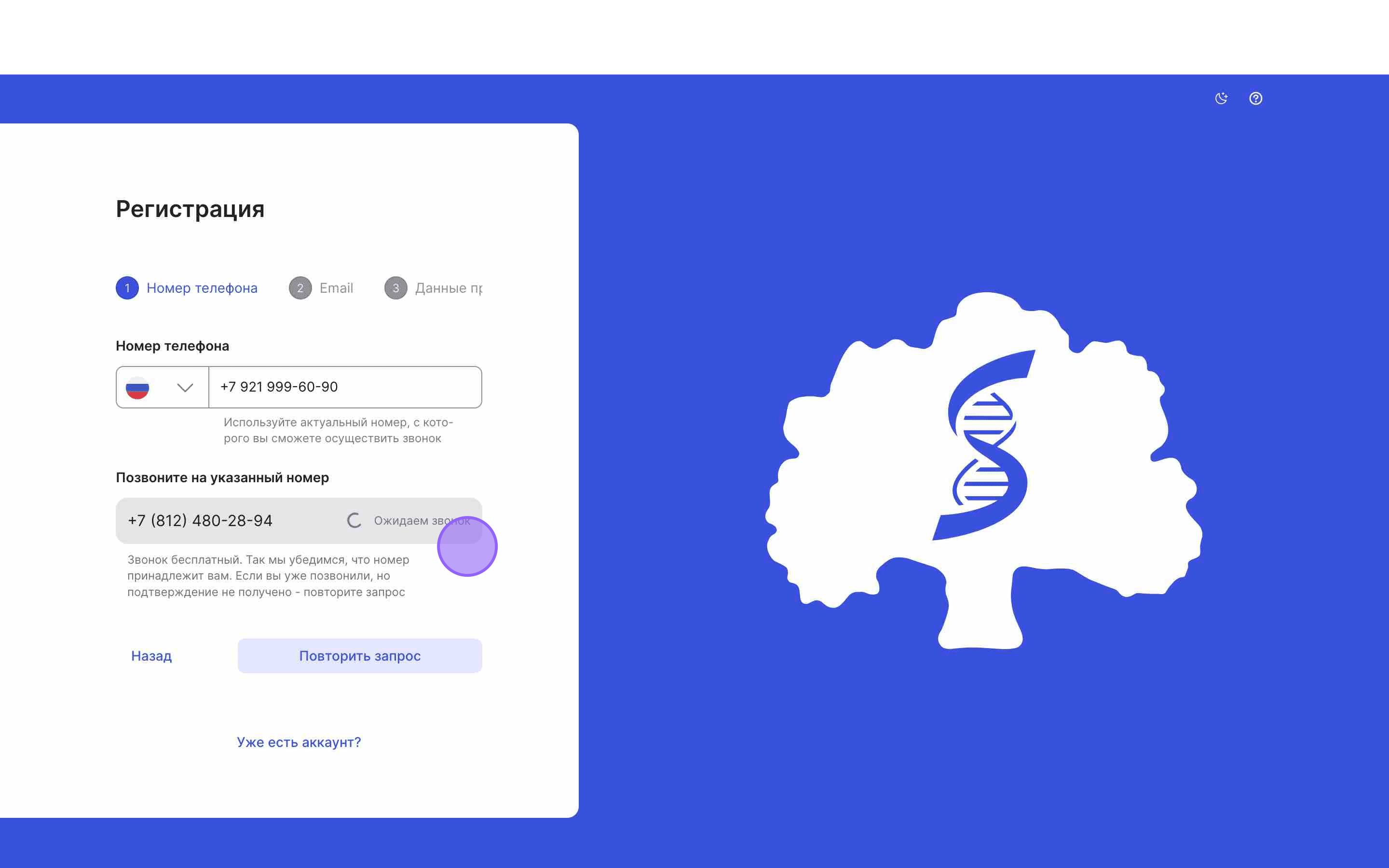
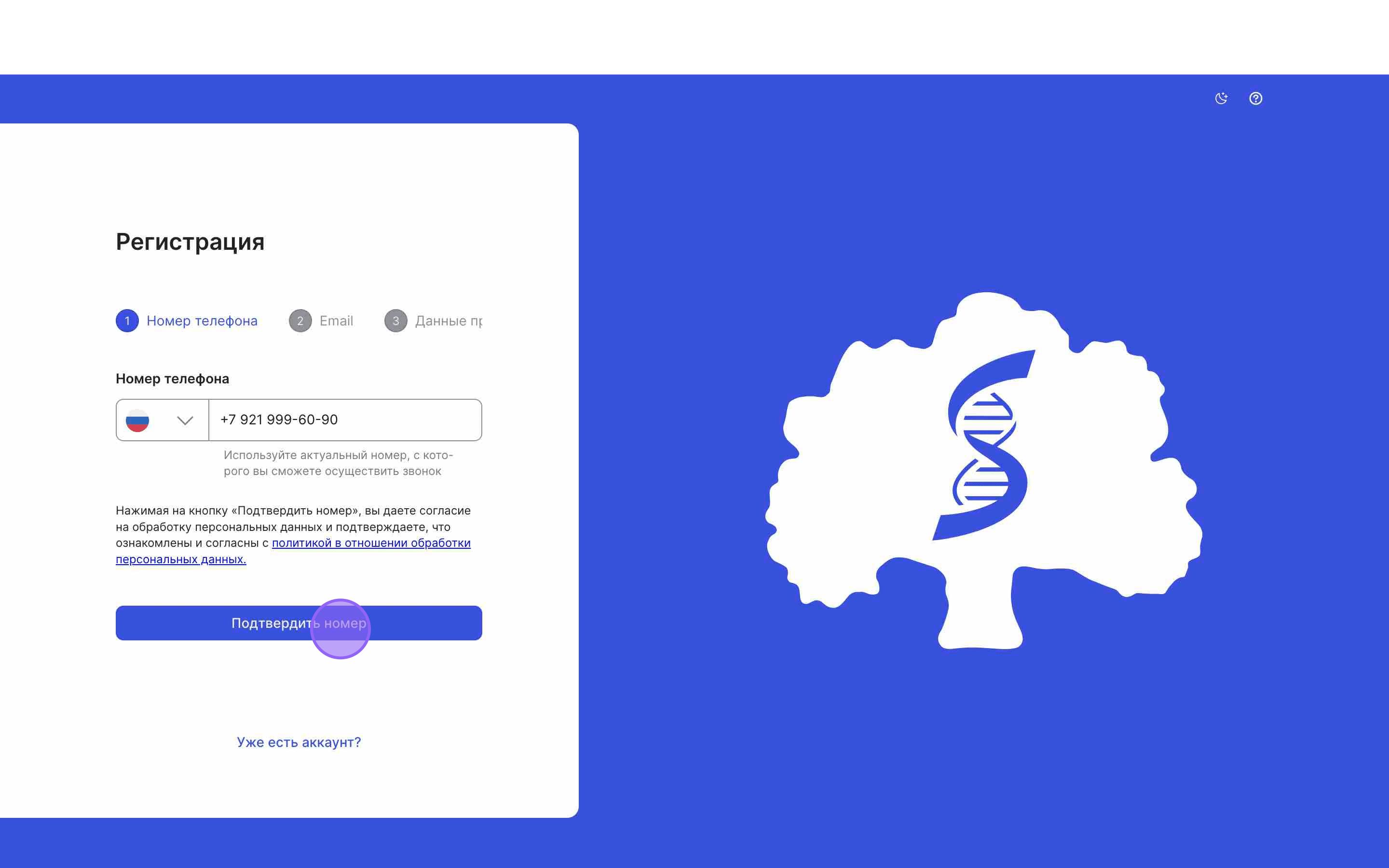
4\. Click **"Confirm Number"** to verify your phone number.
<div id="bkmrk--2"><div>![](https://assets.guidejar.com/uploads/3539F815-576B-493F-933D-516BEE8DB384/s4g92dXSnmhRgriBHqJpLBNadHI2/E4E95DB6-17C2-454D-BEAB-6D72A7BB5540/annotated/1728900028144.jpeg)</div><div>  
</div></div>5\. To confirm your number, call the phone number displayed in the field **"Call the number below"** from your mobile device.

Once the call is made, the system will automatically proceed to the **next step.**

<div id="bkmrk--3"><div>![](https://assets.guidejar.com/uploads/3539F815-576B-493F-933D-516BEE8DB384/s4g92dXSnmhRgriBHqJpLBNadHI2/9C4B06AC-4FB0-4273-BEE1-E13025164B13/annotated/1728900027505.jpeg)</div><div>  
</div></div><p class="callout success">**NOTE: If the confirmation fails, click "Retry". To go back to the previous step, click "Back".**</p>

6\. **Proceed to the email** confirmation step.
<div id="bkmrk--4"><div>![](https://assets.guidejar.com/uploads/3539F815-576B-493F-933D-516BEE8DB384/s4g92dXSnmhRgriBHqJpLBNadHI2/0356796B-627B-4BE7-AF71-E1F523CE783E/annotated/1728900028042.jpeg)</div><div>  
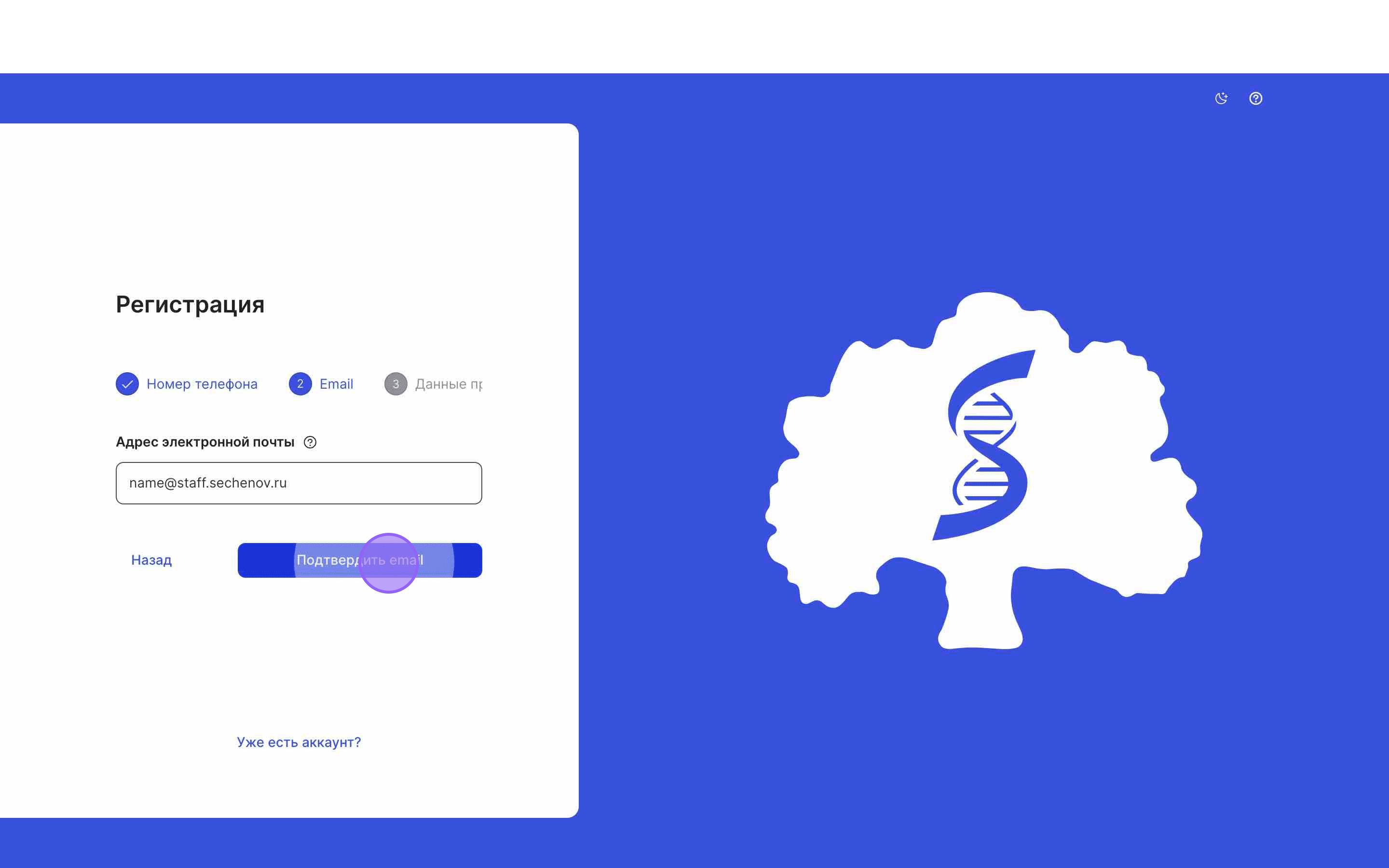
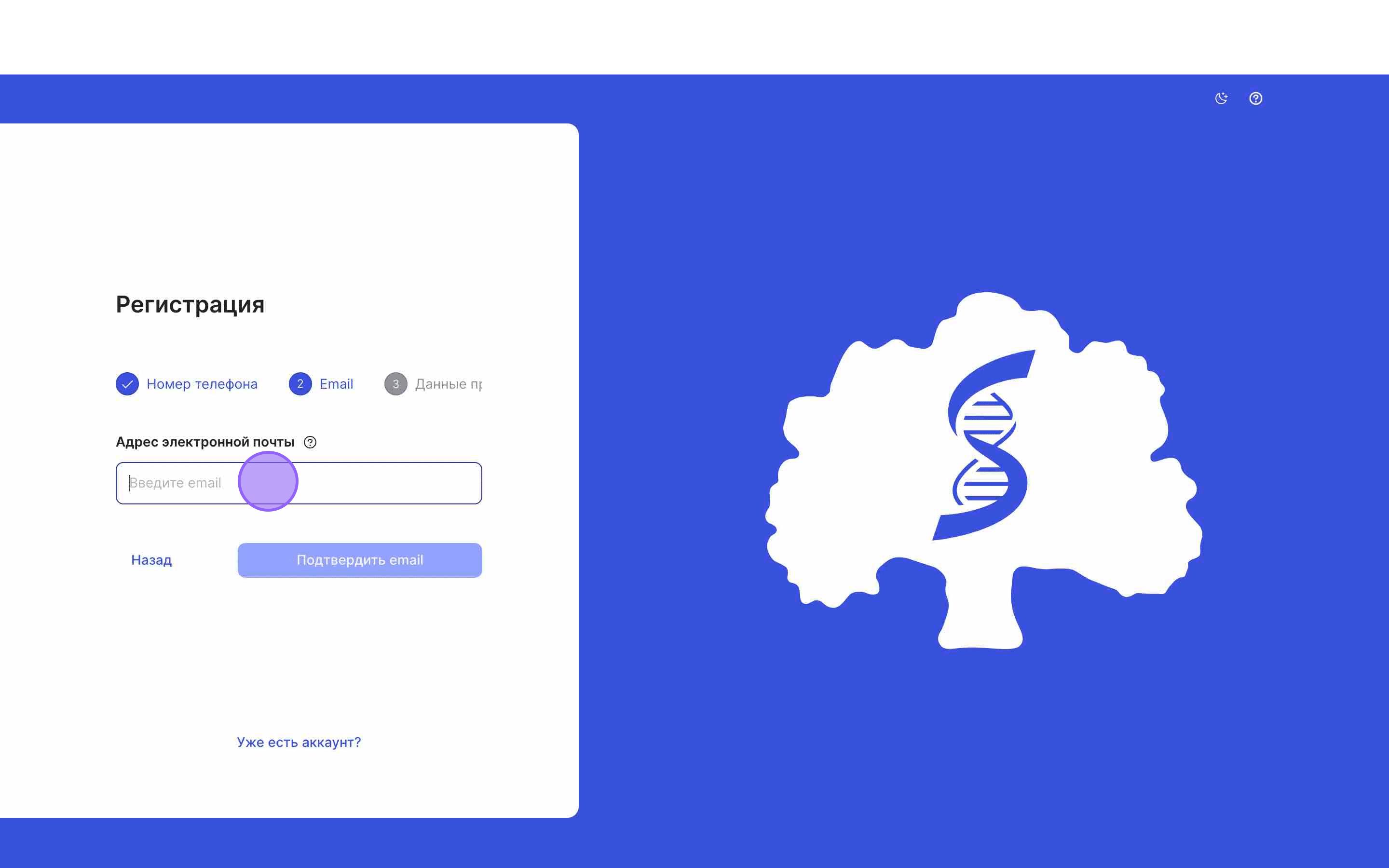
</div></div>7\. Enter your email address and click **"Confirm Email".**

<div id="bkmrk--5"><div>![](https://assets.guidejar.com/uploads/3539F815-576B-493F-933D-516BEE8DB384/s4g92dXSnmhRgriBHqJpLBNadHI2/855BEF9D-215D-4FF9-934C-C1A03347C982/annotated/1728900028471.jpeg)</div><div>  
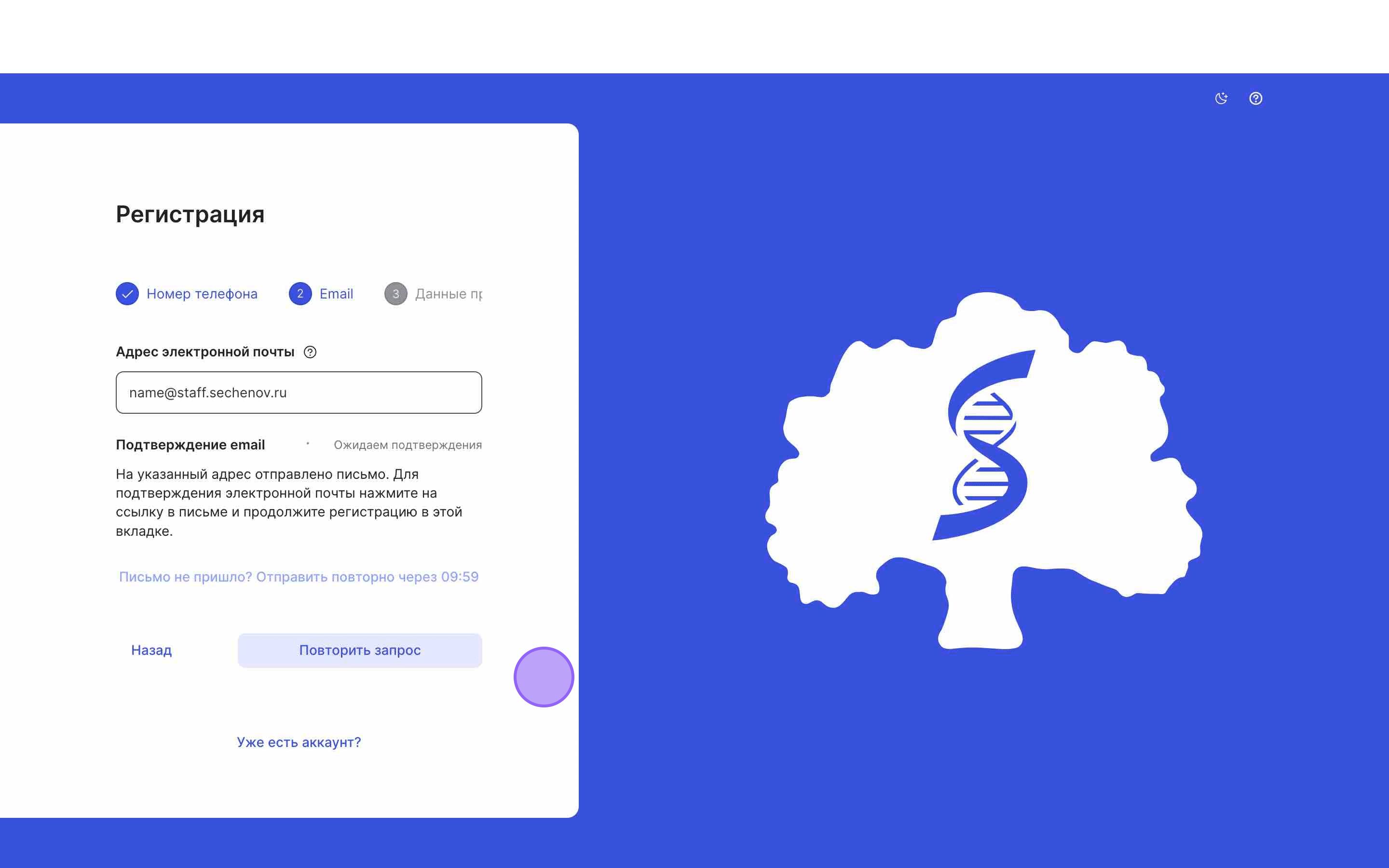
</div></div>8\. A **confirmation email** will be sent to the provided address. **Follow the link** in the email to confirm your email.

After you confirm your email, the system will automatically take you to **the next step of the registration process.**

<div class="mb-2 flex gap-3 empty:hidden -ml-2" id="bkmrk--6"></div><div id="bkmrk--7"><div>![](https://assets.guidejar.com/uploads/3539F815-576B-493F-933D-516BEE8DB384/s4g92dXSnmhRgriBHqJpLBNadHI2/148D27E4-4097-4587-9A44-066A86519CAF/annotated/1728900027770.jpeg)</div><div>  
</div></div><p class="callout success">**NOTE: If you’re unable to confirm your email, click "Retry". To go back, click "Back".**</p>

9\. Next, enter your full name and create a password that will be used to log in to the system.
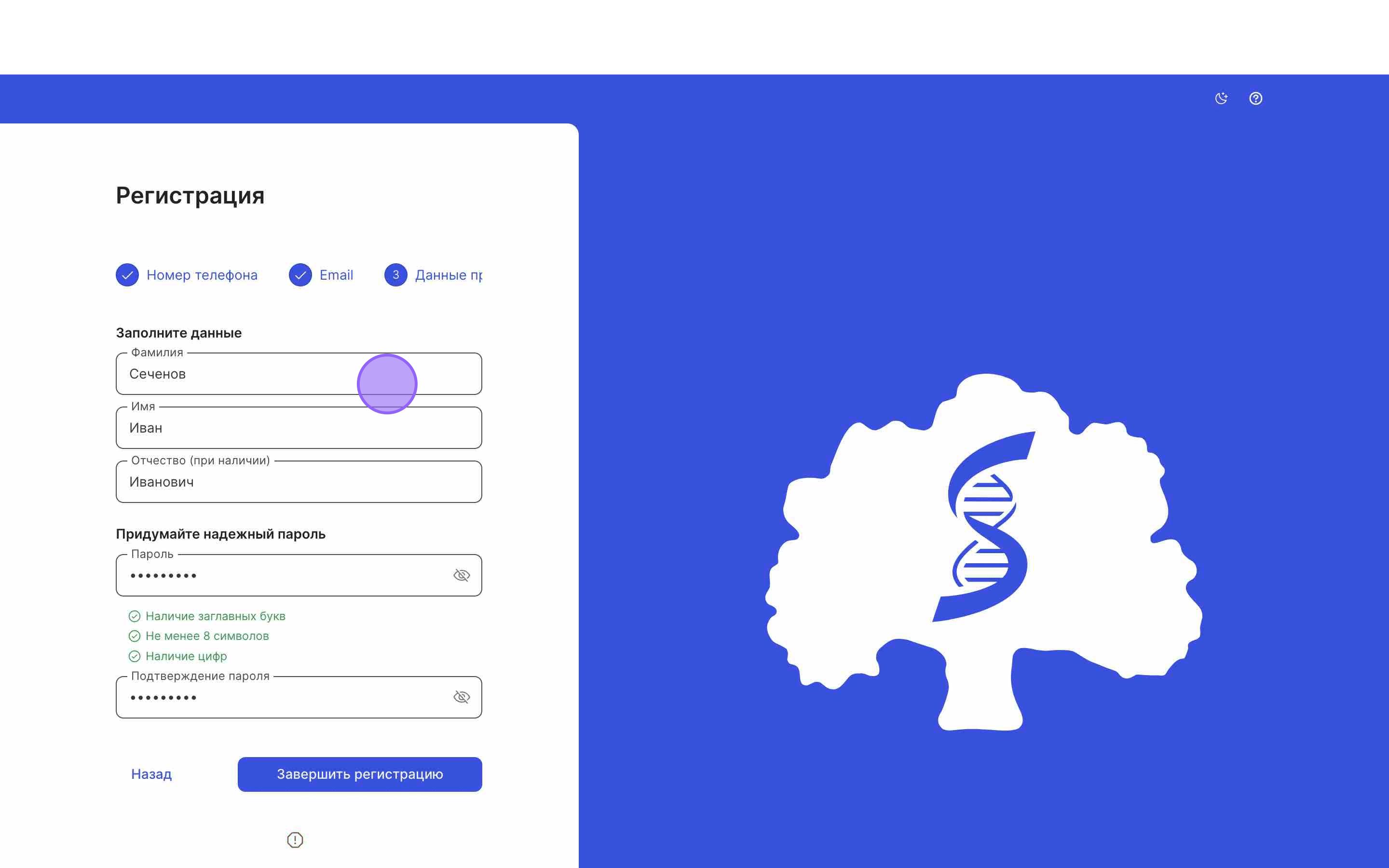
<div id="bkmrk--8"><div>![](https://assets.guidejar.com/uploads/3539F815-576B-493F-933D-516BEE8DB384/s4g92dXSnmhRgriBHqJpLBNadHI2/08F20FFB-FDCE-4A1C-B217-8DFDB462D1ED/annotated/1728900028379.jpeg)</div><div>  
</div></div><p class="callout success">**NOTE: To go back to the previous step, click "Back".**</p>

10\. Click **"Complete Registration".**
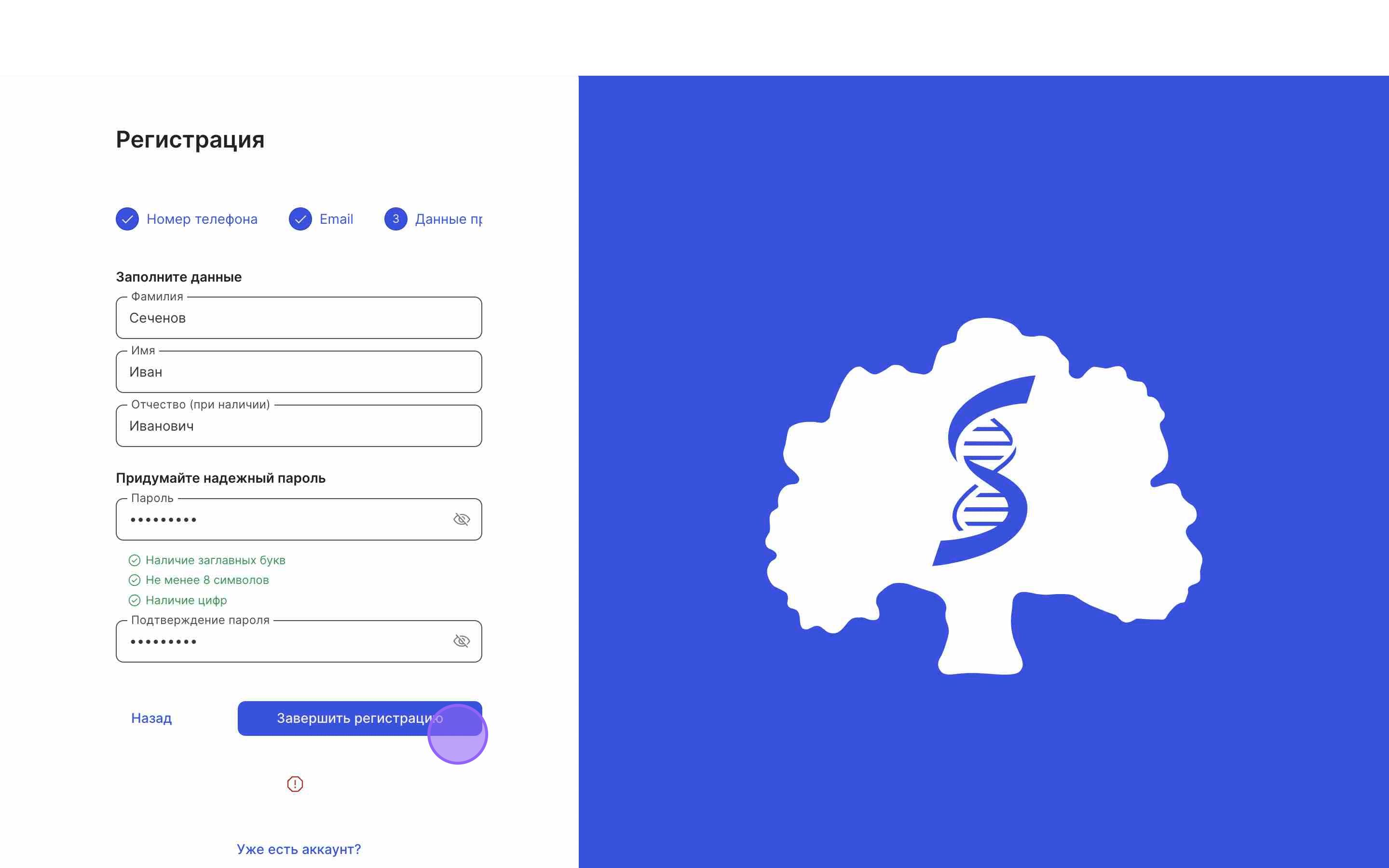
<div id="bkmrk--9"><div>![](https://assets.guidejar.com/uploads/3539F815-576B-493F-933D-516BEE8DB384/s4g92dXSnmhRgriBHqJpLBNadHI2/541EA0A4-E525-4713-8B8A-0A0BADA7D88E/annotated/1728900027940.jpeg)</div></div><div id="bkmrk--10"></div>#### Authorization Confirmation

<p class="callout warning">**IMPORTANT: Without authorization confirmation, you will not be able to access the University premises via QR-code or use ISU services.**</p>

1\. To access the QR code and other ISU services, you need to confirm your authorization in the corresponding section.

Log in to ISU and click on your avatar.
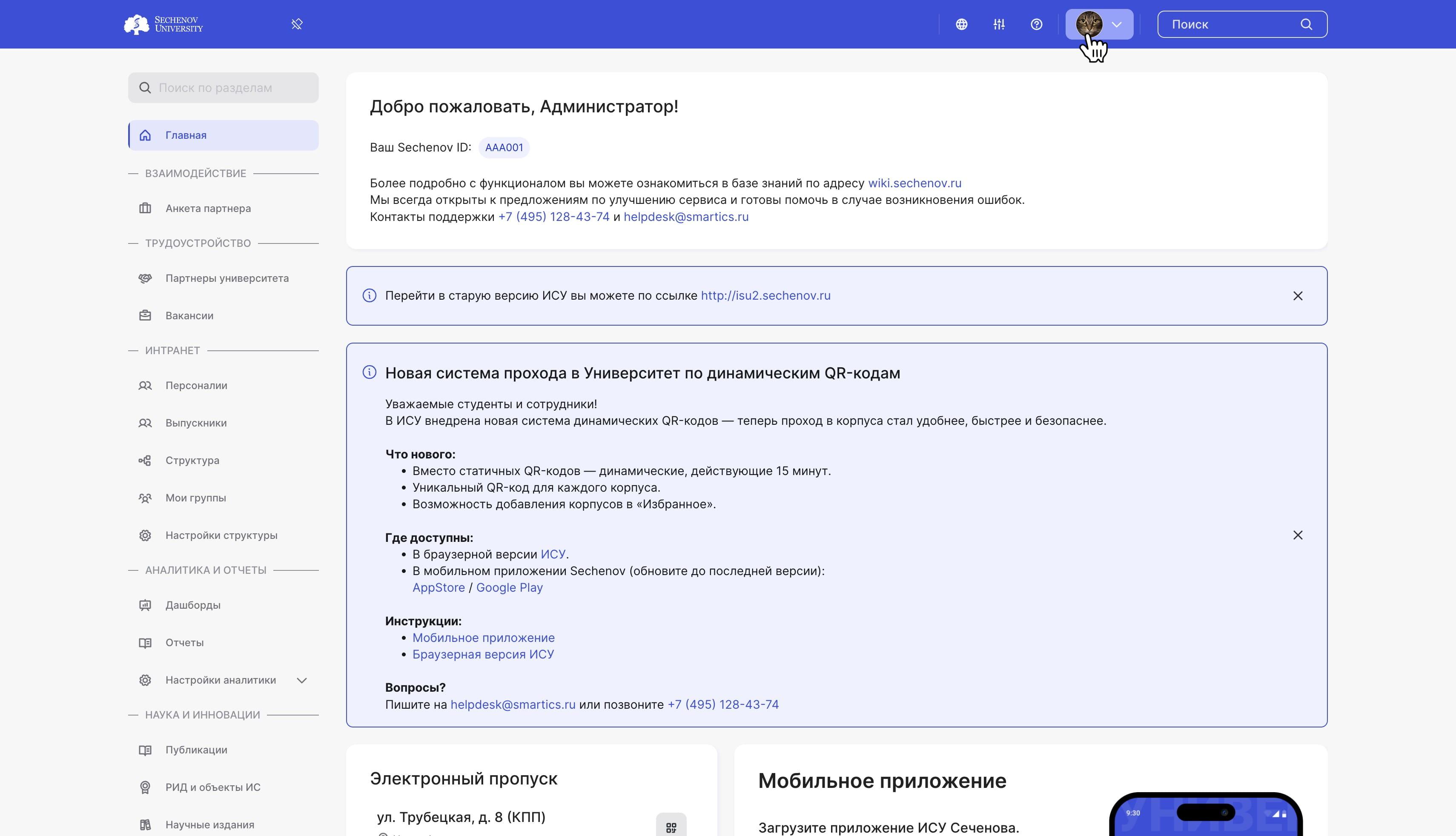
![](https://assets.guidejar.com/uploads/771bc494-31e8-48bc-a84a-d35160e9e770/s4g92dXSnmhRgriBHqJpLBNadHI2/afc5ef06-ae56-422a-be0d-8a76ed4e13bd/annotated/1747308964578.jpeg)

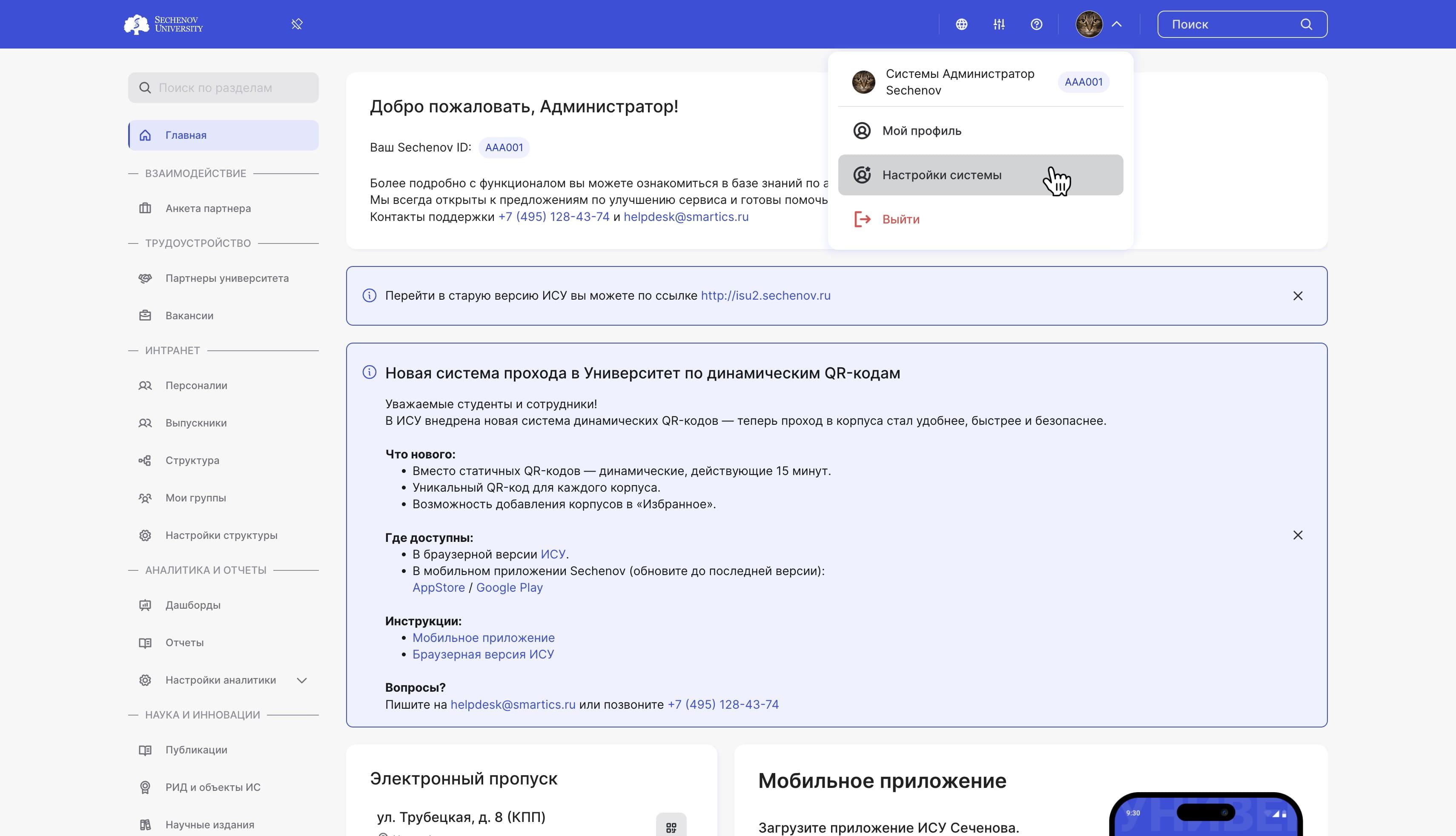
2\. Go to the **"System Settings".**
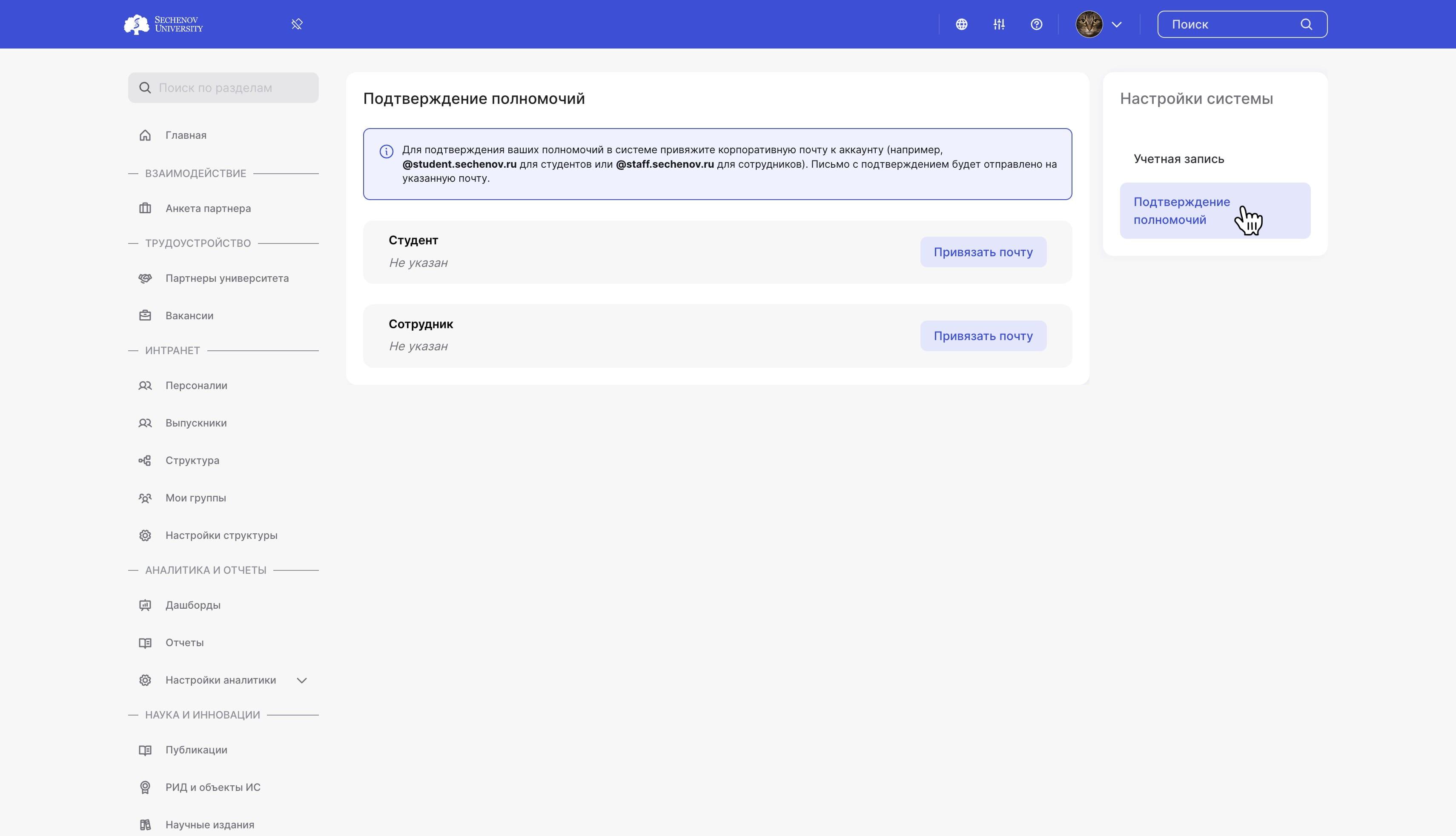
<div id="bkmrk--12"><div>![](https://assets.guidejar.com/uploads/771bc494-31e8-48bc-a84a-d35160e9e770/s4g92dXSnmhRgriBHqJpLBNadHI2/095700c5-b244-4f89-9cfd-7f535ca8588a/annotated/1747308964427.jpeg)</div><div>  
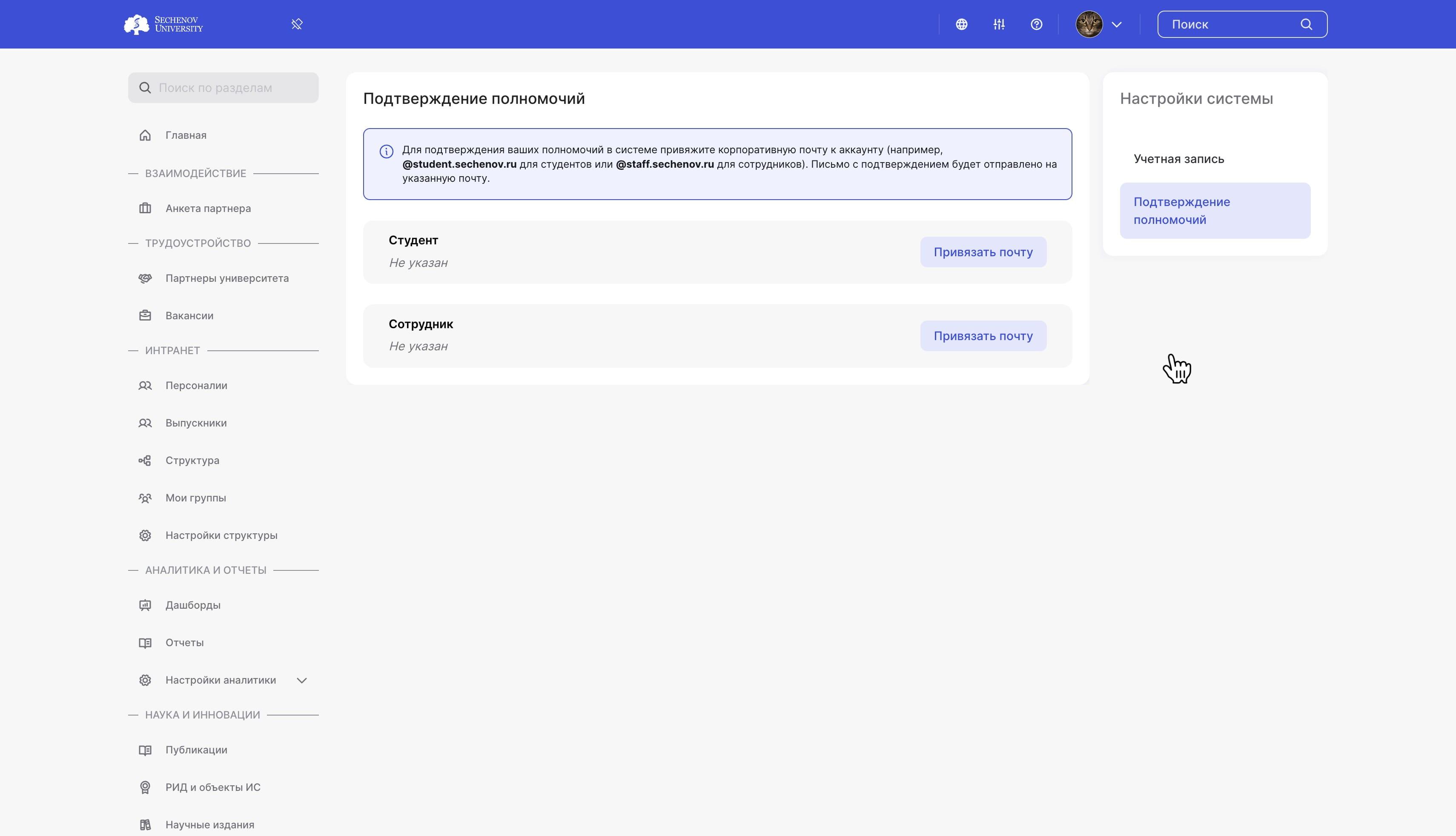
</div></div>3\. Go to the **"Authorization Confirmation"** section.

<div id="bkmrk--13"><div>![](https://assets.guidejar.com/uploads/771bc494-31e8-48bc-a84a-d35160e9e770/s4g92dXSnmhRgriBHqJpLBNadHI2/f2340ec2-1a9d-4b47-93ef-330ac7331860/annotated/1747308964328.jpeg)</div><div>  
</div></div>4\. To confirm your authorization, you need to **link your corporate email.**

- If you are a **student**, use an email ending in **<span class="s1">@student</span>.sechenov.ru.**
- If you are a **staff member**, use an email ending in **<span class="s1">@staff</span>.sechenov.ru.**
- If you are **both**, enter both corporate emails.

<div id="bkmrk--14"><div>![](https://assets.guidejar.com/uploads/771bc494-31e8-48bc-a84a-d35160e9e770/s4g92dXSnmhRgriBHqJpLBNadHI2/ac123095-7e28-4db4-b51b-94dcd24802f6/annotated/1747308964535.jpeg)</div><div>  
</div></div><p class="callout success">**NOTE: Instructions on how to find your corporate email can be [found here.](https://wiki.sechenov.ru/books/registraciia-i-avtorizaciia-v-isu/page/how-to-find-your-corporate-email-at-sechenov-university)**</p>

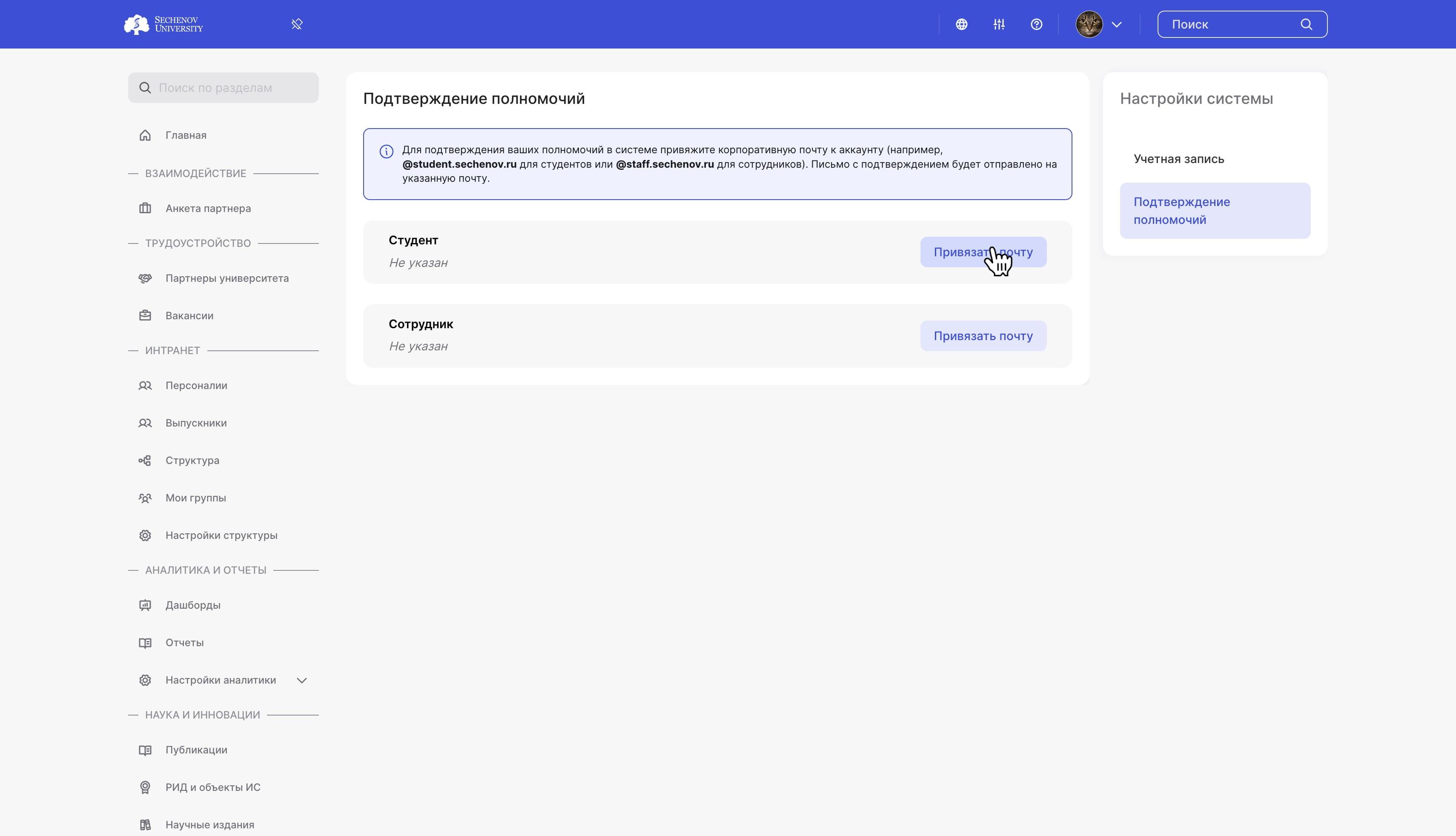
5\. Click **"Link Email".**

<div id="bkmrk--15"><div>![](https://assets.guidejar.com/uploads/771bc494-31e8-48bc-a84a-d35160e9e770/s4g92dXSnmhRgriBHqJpLBNadHI2/48a8716a-c5fc-4925-a439-319d7b608640/annotated/1747308964463.jpeg)</div><div>  
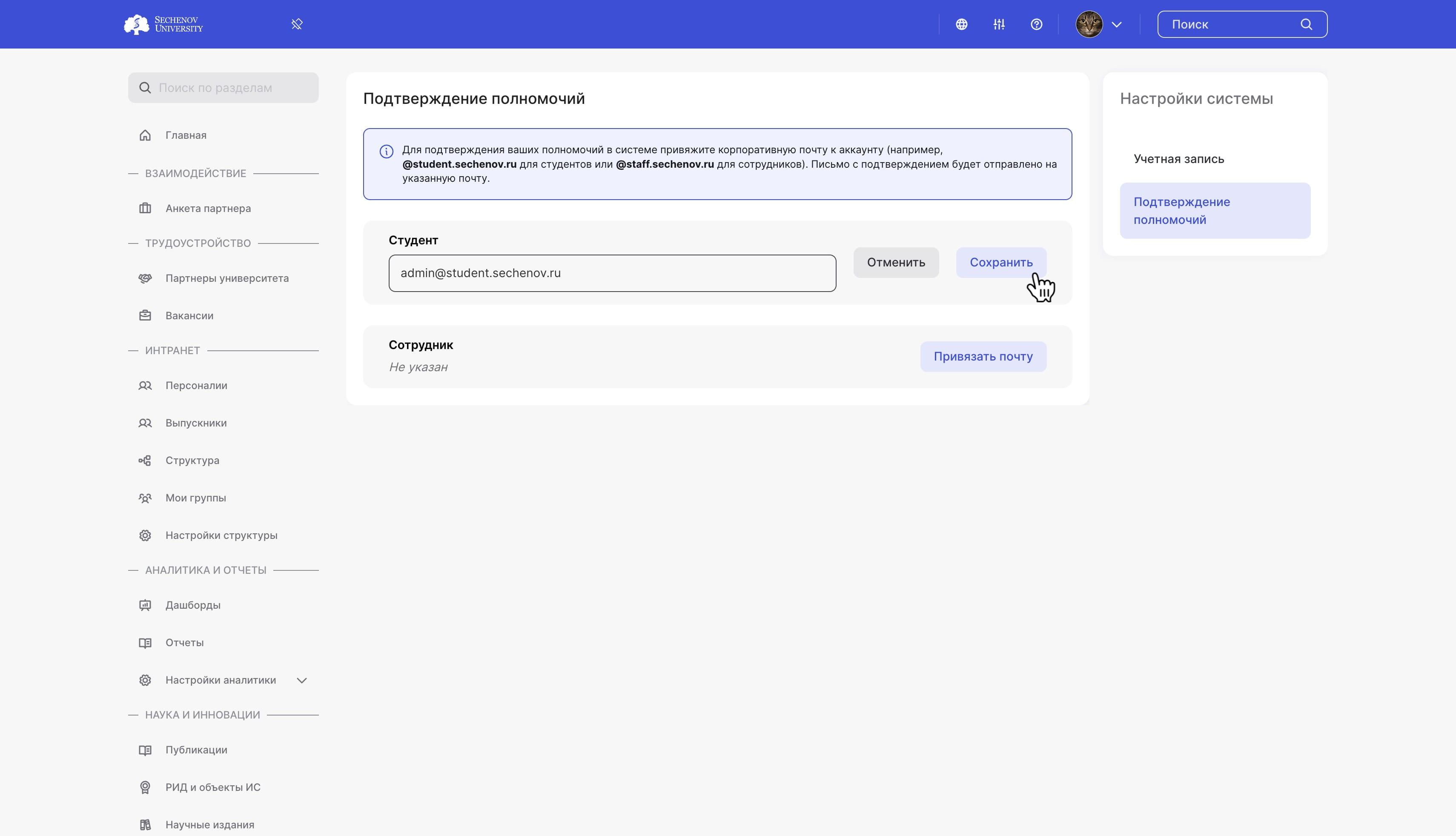
</div></div>6\. Enter your corporate email and click **"Save".**

<div id="bkmrk--16"><div>![](https://assets.guidejar.com/uploads/771bc494-31e8-48bc-a84a-d35160e9e770/s4g92dXSnmhRgriBHqJpLBNadHI2/e6fa3607-2469-4ee8-9166-4747544b4796/annotated/1747308964387.jpeg)</div><div>  
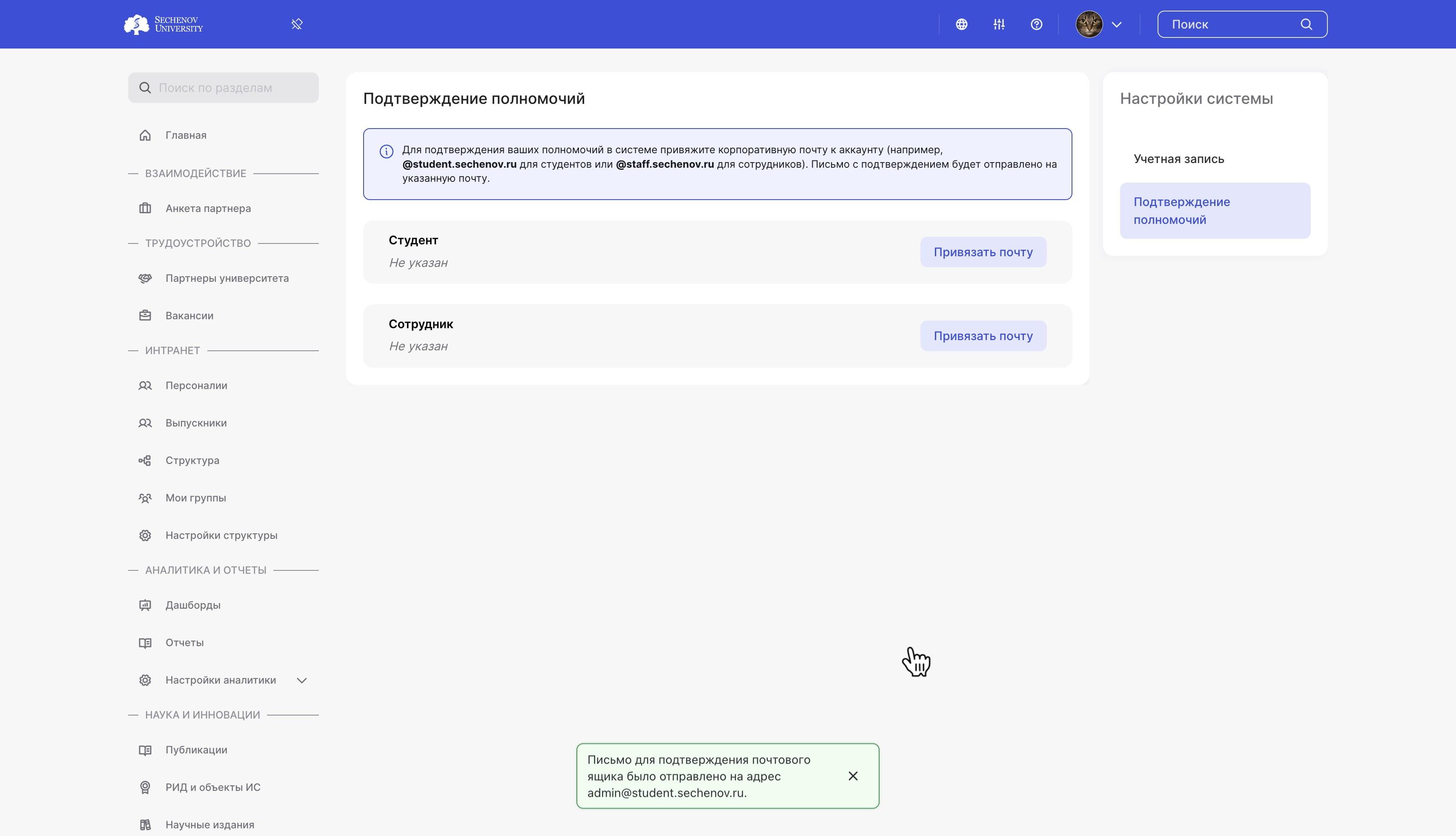
</div></div>7\. You will receive a confirmation email. Open it and **follow the link provided.**

After successful confirmation, your authorization information will appear in your personal account within a few minutes.

<div id="bkmrk--17"><div>![](https://assets.guidejar.com/uploads/771bc494-31e8-48bc-a84a-d35160e9e770/s4g92dXSnmhRgriBHqJpLBNadHI2/0a4e5abd-37e8-4ebf-acea-ee95380aeab9/annotated/1747308964499.jpeg)</div><div>  
</div></div><p class="callout success">**NOTE: If confirmation fails, please contact technical support at <span class="s1">helpdesk@smartics.ru</span> or call +7 (495) 128-43-74.**</p>

#### Mobile App

**Download the "Sechenov" mobile app** to keep your access QR-codes and the ISU platform on your phone.

The app is available in the<span class="s1"> </span>[AppStore](https://apps.apple.com/ru/app/sechenov/id6464665981)<span class="s1"> and </span>[Google Play.](https://play.google.com/store/apps/details?id=dev.acs.smartics.dev.keycloak&pcampaignid=web_share)